How to Display Your iPhone on a Computer Monitor in 2024
Introduction
Displaying your iPhone on a computer monitor can significantly enhance your visual experience. Whether you’re delivering a presentation, watching a movie, or testing an app suite, connecting your iPhone to a larger display is crucial. This guide will walk you through the most effective methods in 2024 to achieve seamless synchronization.
Why Display Your iPhone on a Computer Monitor?
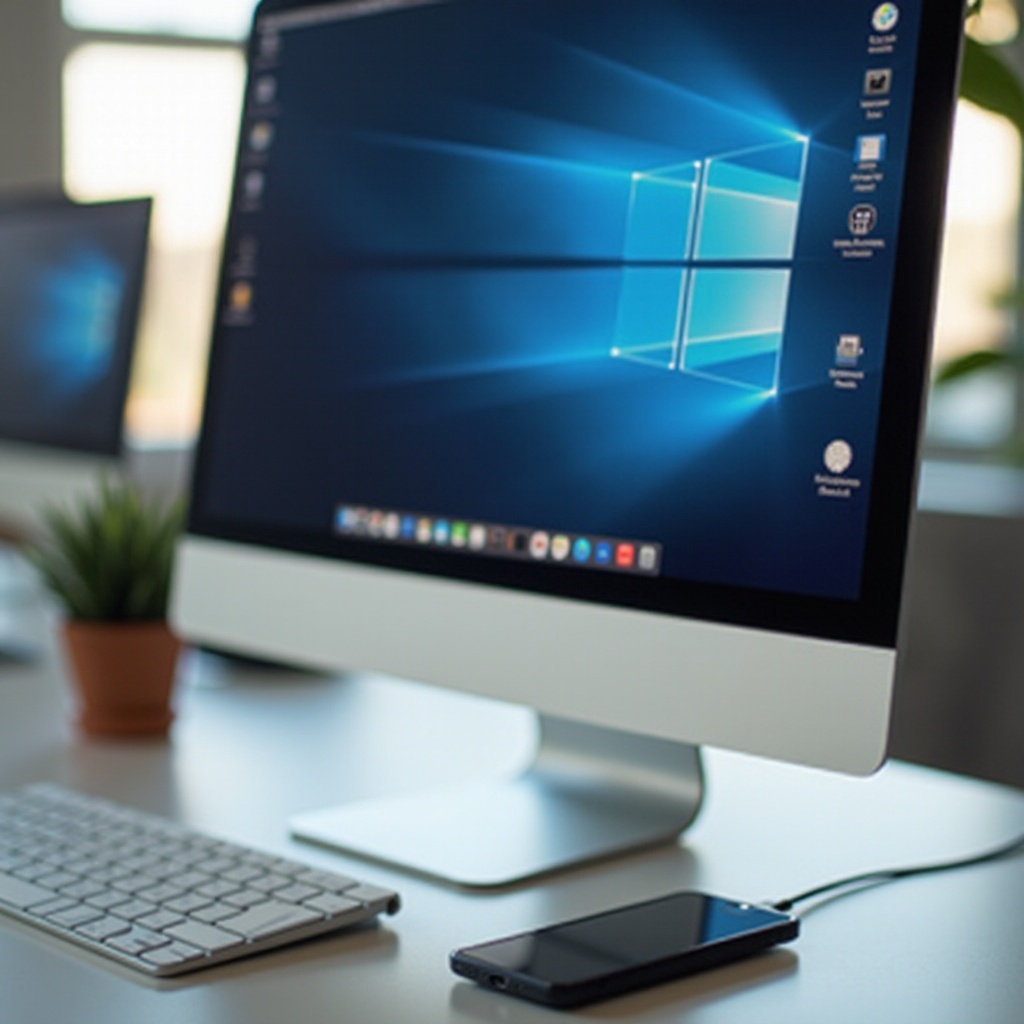
There are numerous benefits to connecting your iPhone to a computer monitor. The larger screen improves clarity, making it perfect for professional settings or collaborative projects. Gamers appreciate the detailed graphics and immersive experience, and developers can ensure their apps function well across different display sizes. Ultimately, linking your iPhone to a monitor maximizes its potential, offering a better view and enhanced functionality.
Using AirPlay for Wireless Screen Mirroring
One of the most convenient methods to display your iPhone screen is by using AirPlay.
What is AirPlay?
AirPlay is Apple’s wireless streaming technology that allows users to mirror their iPhones to compatible displays like Apple TVs or AirPlay-enabled monitors with ease.
Step-by-Step Guide to Setting Up AirPlay
- Connect your iPhone and the target device to the same Wi-Fi network.
- Access the Control Center on your iPhone by swiping down from the upper-right corner.
- Tap ‘Screen Mirroring’ and a list of devices will appear.
- Choose your target device from the list.
- Your iPhone’s screen should now be mirrored on the monitor.
Troubleshooting Common AirPlay Issues
- Lag or Delays: Ensure both devices are using the same network and reduce Wi-Fi interference by disconnecting unnecessary devices.
- Frequent Connection Drops: Try resetting your network settings or restarting both devices.
With AirPlay set up, the next step is to explore third-party apps, which offer additional features and customization.
Third-Party Apps for iPhone Screen Mirroring
For users seeking more flexibility and features, third-party apps are a viable option.
Overview of Popular Apps
Applications like Reflector, ApowerMirror, and LonelyScreen provide various functionalities to extend your iPhone’s display onto a computer monitor.
Installation and Setup
- Download and install a preferred app on your computer.
- Launch the app and ensure your computer and iPhone are connected to the same Wi-Fi network.
- Open the Control Center on your iPhone and tap ‘Screen Mirroring.
- Select the app from the list of available devices.
Advantages and Disadvantages
- Pros: These apps offer added features like screen recording and enhanced audio options.
- Cons: Some apps require a purchase or subscription and may introduce slight performance lag.
While apps provide additional capabilities, those who prefer a stable and direct connection may opt for a wired setup instead.
Wired Connections: How to Use a USB or HDMI Cable
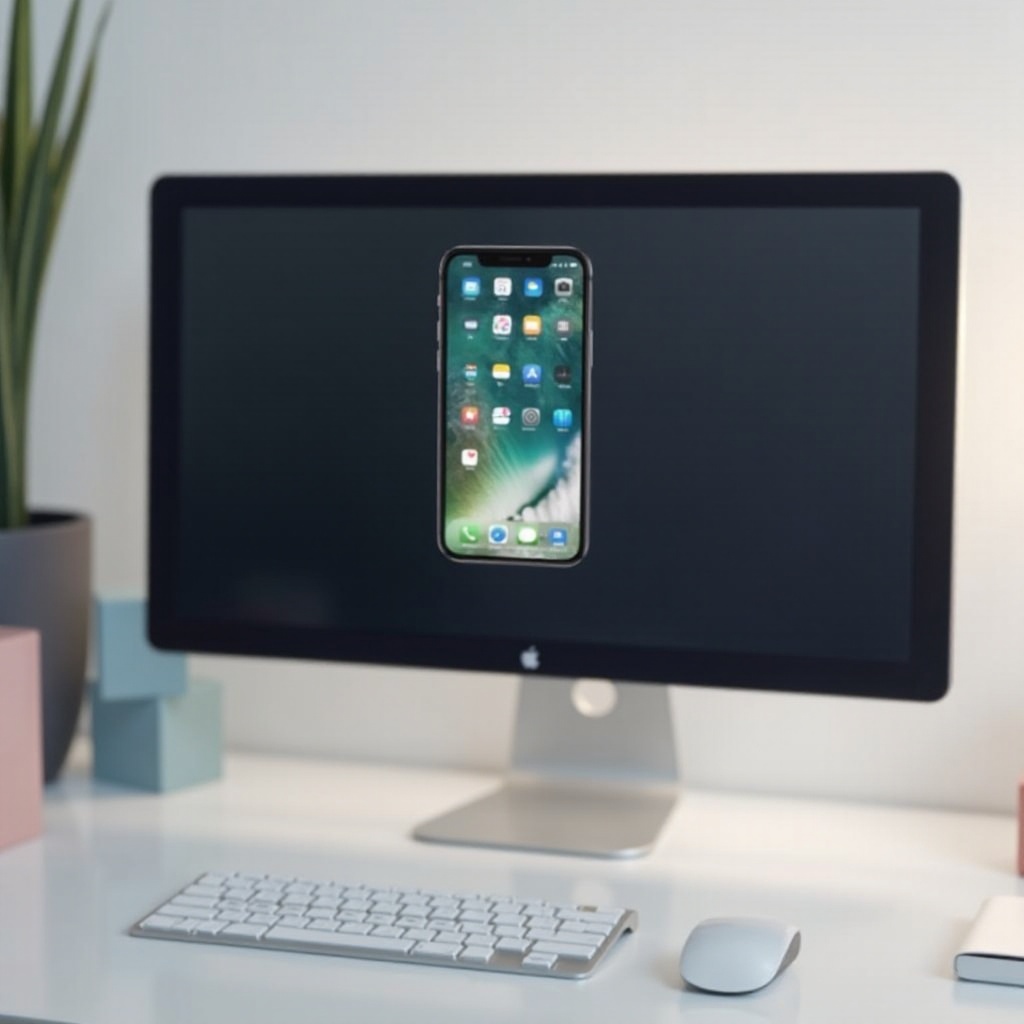
A wired connection offers stability, making it ideal for consistent and lag-free screen mirroring.
Setting Up a USB Connection
- Connect your iPhone to your computer via a USB cable.
- On a Mac, open QuickTime Player and choose ‘New Movie Recording.
- Select your iPhone as the camera source, and your screen will appear on the computer.
Connecting via HDMI Cable
- Utilize a Lightning Digital AV Adapter to connect your iPhone to an HDMI cable.
- Attach the HDMI cable to your monitor.
- Your iPhone screen should display on the monitor automatically.
Pros and Cons of Wired Connections
- Pros: Offers consistent connectivity with minimal latency issues.
- Cons: Physical tethering reduces flexibility.
After understanding the various options, it is important to evaluate which method aligns with your needs.
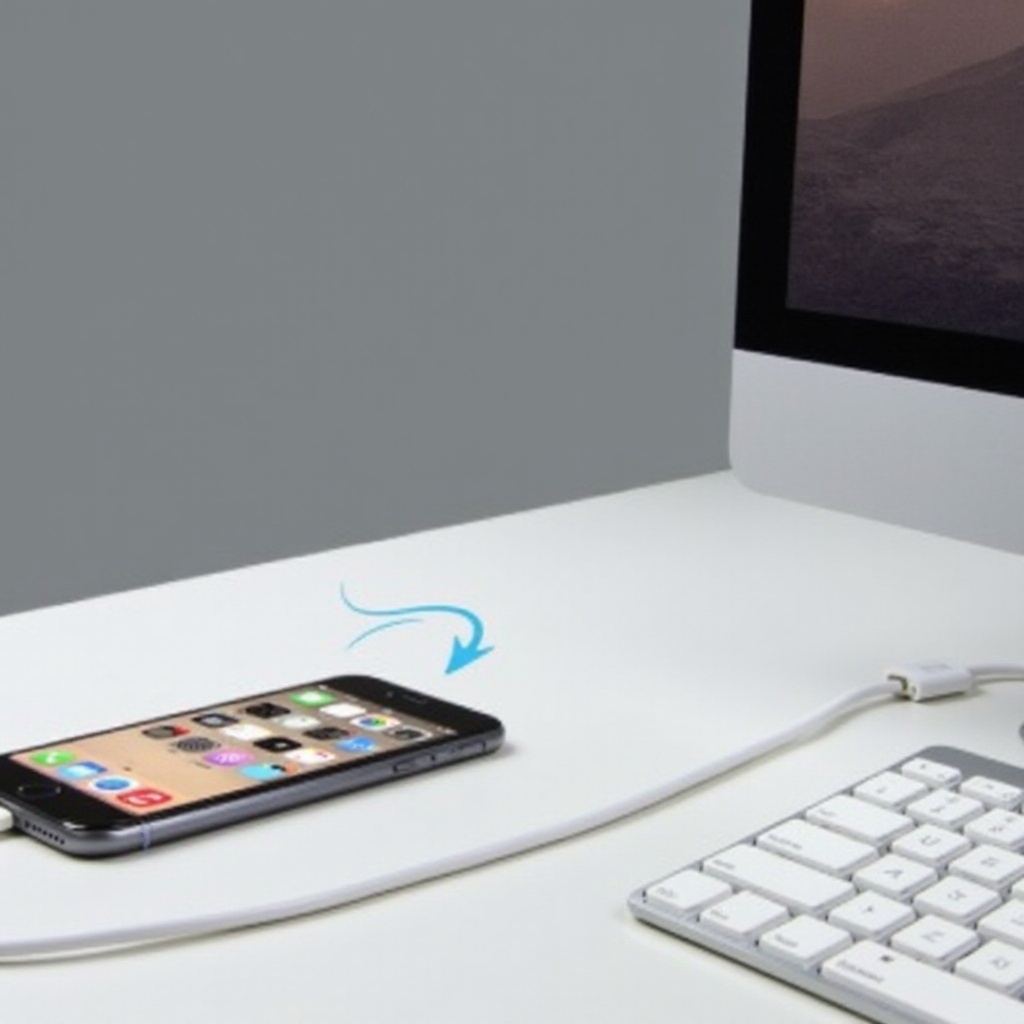
Choosing the Best Method for Your Needs
When deciding on the best connection method, consider the benefits and limitations of each option in relation to your specific situation.
Comparison of Methods
- AirPlay: Ideal for users deeply integrated into the Apple ecosystem.
- Third-Party Apps: Useful for those needing added functionality and customization.
- Wired Connections: Most suitable for users requiring stable and reliable connections.
Recommendations Based on Use Case
- For media presentations and entertainment: AirPlay or HDMI.
- For frequent app testing by developers: Wired USB.
- For extended use with feature enhancements: Third-party apps.
By assessing these options, users can confidently select the most appropriate method to enhance their iPhone’s display capabilities.
Conclusion
Displaying your iPhone on a computer monitor significantly enlarges your screen real estate, enhancing both functionality and user experience. Whether you choose a wireless method like AirPlay, seek the additional functionality of third-party apps, or prefer the stability of a wired connection, understanding the available options allows for informed decision-making that maximizes your device’s potential.
Frequently Asked Questions
Can I display my iPhone screen without downloading additional software?
Yes, AirPlay and QuickTime Player on a Mac offer seamless mirroring without extra software.
Is there any lag when using these methods?
Wireless mirroring may have slight lag, whereas wired connections generally provide near-zero latency.
What should I do if my connection keeps dropping?
Check network stability, ensure devices are updated, and try restarting your device or router for better connectivity.