Do Android Phones Automatically Change for Daylight Saving Time?
Introduction
Daylight saving time (DST) can cause confusion if your devices don’t adjust automatically. This can lead to missed appointments or disrupted routines. Many Android users wonder if their phones adapt to these changes on their own. In this article, we explore whether Android devices automatically handle DST and provide instructions for ensuring your phone updates correctly.
Understanding Daylight Saving Time
Daylight saving time was introduced to make better use of daylight during the evening hours. During DST, clocks are set forward by one hour in spring and moved back in autumn. While this practice is observed in many areas globally, it can be a source of confusion if your devices aren’t correctly set up to accommodate these changes. It is essential to understand the impact of DST on your devices to ensure your daily schedule remains uninterrupted.
How Android Phones Handle Daylight Saving Time Changes
Android phones typically adjust automatically for daylight saving time transitions. They rely on the settings enabled for time updates from your network provider. Here are the key features involved:
-
Automatic Time Update Features in Android
Android devices are equipped with an ‘Automatic date & time’ setting, which uses network data to adjust your device’s time. This feature ensures a smooth transition during daylight saving changes. -
Role of Network and Location Settings
Network signals provide your phone with accurate time data, while location services help determine your geographical area to apply the appropriate time zone. Ensuring these settings are active allows your device to handle DST changes efficiently.
Understanding these processes will help maintain the integrity of your Android device’s time settings, regardless of daylight saving time adjustments.
Checking and Adjusting Time Settings on Android Devices
To ensure your Android phone is set to update correctly for daylight saving time, follow these steps:
-
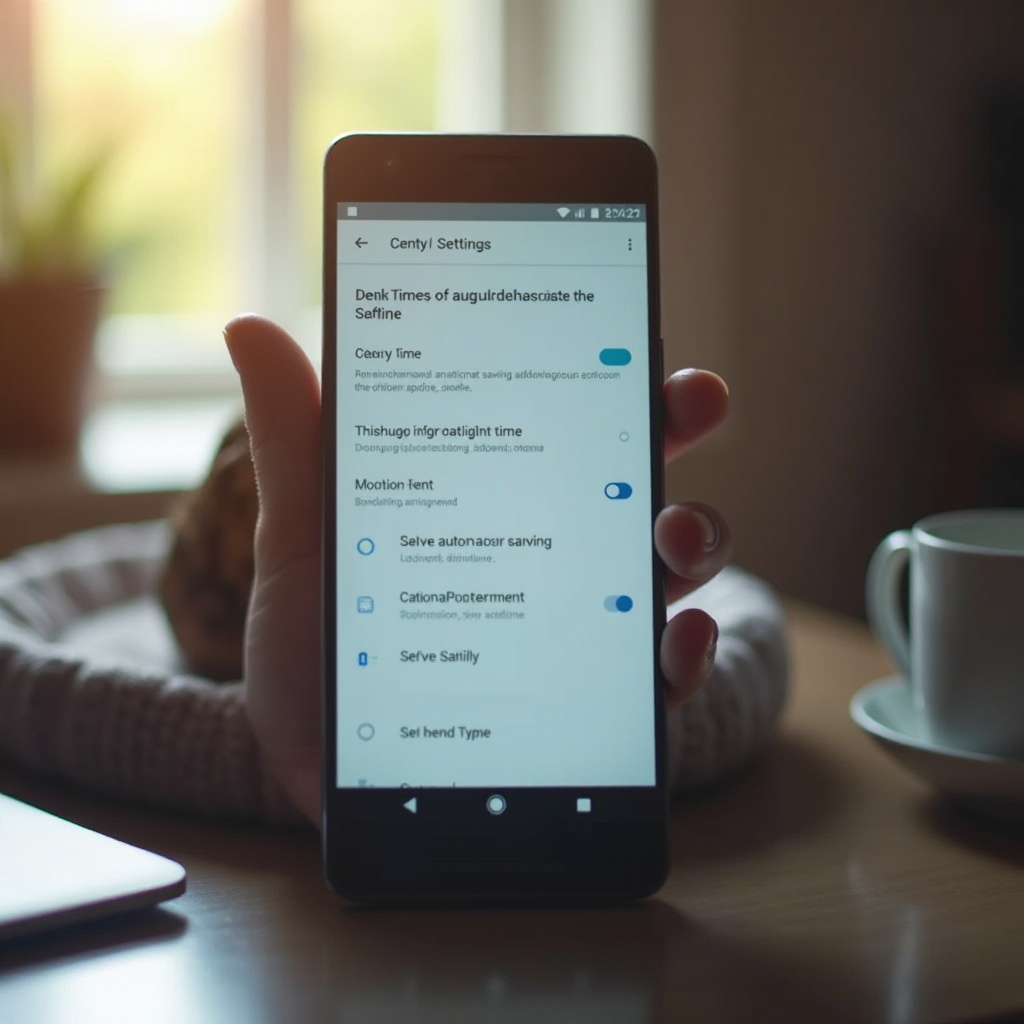
Navigating to Date and Time Settings
Go to your phone’s Settings app. Navigate to ‘System’ and select ‘Date & time’. This menu allows you to verify and alter your phone’s time settings. -
Enabling Automatic Date and Time
Ensure the options for ‘Automatic date & time’ and ‘Automatic time zone’ are turned on. These settings use your network’s time and location data to maintain accuracy. -
Manual Adjustment Process
If automatic settings fail, you can manually set your phone’s time. Turn off the automatic settings within the same menu, then select your time zone and manually insert the accurate time.
Proper adjustment of these settings will ensure a worry-free experience when daylight saving changes occur.
Troubleshooting Common Daylight Saving Time Issues on Android
Despite the automatic features, some users may experience issues with DST changes. Here are some troubleshooting tips:
-
Identifying Incorrect Time Updates
If your device fails to update, you may notice discrepancies in calendar alerts or see incorrect times displayed. -
Simple Fixes for Common Issues
- Restart your phone to attempt a re-sync with the network.
- Switch airplane mode on and off. This may refresh your network connectivity and force a time update.
- Look for system updates, as outdated software can cause synchronization issues.
Resolving these issues will help you maintain accurate time settings and avoid any complications associated with daylight saving transitions.
Keeping Your Android Device Updated for Accurate Time Management
Consistent updates are essential to keeping your phone’s time features working properly:
-
Importance of Software Updates
Software updates often include improvements and bug fixes affecting time synchronization. Make sure your device is running on the latest software for optimal performance. -
Best Practices for Time Setting Accuracy
Regularly check for updates and ensure all relevant apps, especially those managing your calendar and alarms, are current. These habits help maintain the accuracy and reliability of your device’s time settings.
Following these best practices ensures that your phone will handle daylight saving changes correctly.
Conclusion
Android phones are generally equipped to handle daylight saving changes automatically, provided that the correct settings are applied. By using automatic updates and location services, your device can adjust to these time changes seamlessly. Should you encounter any issues, a quick review of your settings and potential updates usually resolves them, ensuring your schedule remains unaffected.
Frequently Asked Questions
Why didn’t my Android phone update for daylight saving time?
Incorrect settings or network issues can prevent updates. Check your date and time settings and restart your phone to resolve the issue.
How can I tell if my Android phone is set to adjust automatically for daylight saving time?
Navigate to Settings > System > Date & time to ensure ‘Automatic date & time’ and ‘Automatic time zone’ are enabled.
What should I do if my phone still shows the wrong time after the daylight saving change?
Check for system updates, restart your device, or manually adjust the time settings if the issue continues.