
How to Transfer Files from Samsung to iPhone Using Quick Share and Other Solutions
Introduction
Transferring files between phones with different operating systems can be tricky, particularly when dealing with Samsung and iPhone devices. Samsung Quick Share is a great tool for quick and effortless sharing among Samsung devices, but transferring files to an iPhone poses challenges. This guide walks you through using Samsung Quick Share, explains the difficulties with direct transfers to iPhones, and suggests practical alternatives.
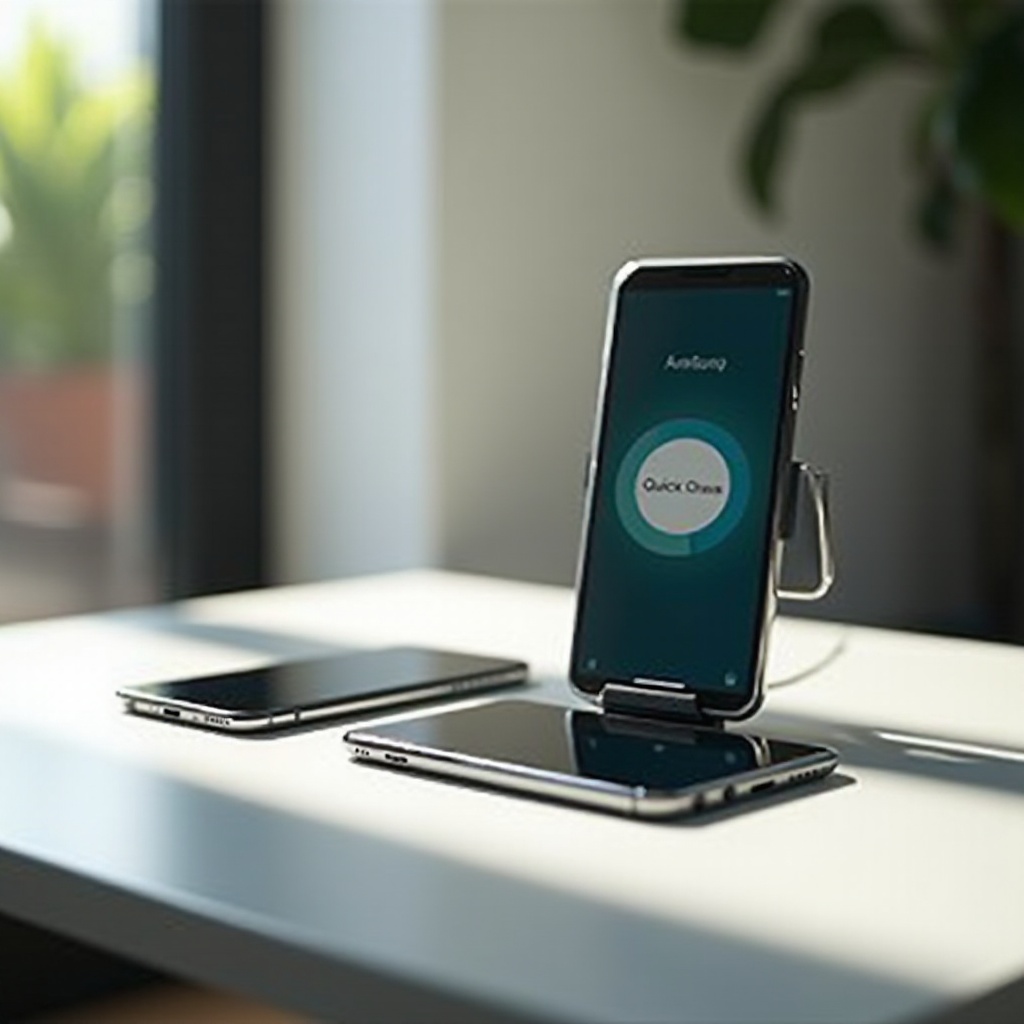
Understanding Samsung Quick Share
Quick Share is a Samsung feature that allows easy sharing of files like photos and videos with other Samsung devices. It’s convenient and manages to send files without any hassle.
What is Samsung Quick Share?
Quick Share enables the transfer of files using Wi-Fi Direct, making it fast and efficient. Users benefit from its ability to send large files rapidly without compromising quality.
Features and Benefits of Quick Share
- Speed: Utilizes Wi-Fi Direct for quick transfers.
- Simplicity: User-friendly interface suitable for everyone.
- Security: Transfers are kept secure, maintaining data privacy.
Quick Share is advantageous for Samsung users within its ecosystem, but sharing with iPhones requires looking at other solutions due to compatibility issues.
Compatibility of Quick Share with iPhone
The challenge of transferring files using Quick Share to an iPhone arises from incompatible technologies between Android and iOS.
Current Technological Limitations
Quick Share uses Wi-Fi Direct, unsupported by iOS, making direct transfers to iPhones impossible at the moment.
Why Direct Sharing Isn’t Possible Yet
Apple’s strict ecosystem control ensures security and integration but limits compatibility with Android features like Samsung Quick Share, maintaining a hurdle for direct transfers.
Solutions can be sought, though, by exploring various methods that overcome these obstacles.

Exploring Alternative Solutions for File Transfer
While direct transfers can’t be done, several alternatives facilitate file sharing between Samsung and iPhone efficiently.
Using Third-Party Apps
- SHAREit: Facilitates cross-platform transfers swiftly.
- Zapya: Provides quick sharing capabilities for various devices.
Cloud-Based Services
Platforms like Google Drive, Dropbox, or OneDrive ease the process by allowing file uploads from one device and downloads to another, offering reliability and ease.
Manual Transfer Methods
Another route involves transferring files using a computer:
1. Connect Samsung to the computer, copy needed files.
2. Connect iPhone to the computer and import files using Finder or iTunes.
These methods provide users with flexible options for transferring files based on their requirements.
Step-by-Step Guide to Transfer Files from Samsung to iPhone
Choose a method that suits your needs and follow the steps for a hassle-free transfer.
Preparations and Requirements
- Ensure devices are adequately charged.
- Install necessary apps for transfer.
- Have a stable internet connection if using cloud services.
Using a Computer as a Bridge
- Use a USB to connect your Samsung device to a computer.
- Copy files to the computer.
- Disconnect the Samsung phone, connect the iPhone.
- Use iTunes or Finder to transfer files to the iPhone.
Direct Wireless Methods
- Install SHAREit or a similar app on both devices.
- Follow app instructions to connect phones wirelessly.
- Select and send files from Samsung to iPhone.
These steps guide you through each process, offering secure and effective ways to move your data.
Tips and Best Practices for Efficient File Sharing
Maintain efficiency and security by adhering to these practices.
Ensuring File Security
Verify app security and permissions to protect your data during transfers.
Maintaining Transfer Speed
For large files, using Wi-Fi or cable connections improves speed and minimizes wait times.
Following these tips ensures an efficient, secure, and hassle-free file-sharing experience.

Conclusion
While transferring files between different operating systems presents challenges, the right tools and approaches make it manageable. Samsung Quick Share excels within its realm, but adapting with alternatives like apps, cloud solutions, or manual transfers ensures successful file sharing from Samsung to iPhone. By choosing the best-suited method for your needs, efficient and seamless data transfer becomes easily achievable.
Frequently Asked Questions
What is the fastest way to transfer files from Samsung to iPhone?
Using third-party apps like SHAREit or cloud services provides quick and effective solutions for real-time wireless file transfers.
Are there apps that work like AirDrop for Android?
Yes, apps such as SHAREit and Zapya function similarly to AirDrop, enabling cross-platform file sharing.
Is it safe to use third-party apps for file transfer?
Most reputable apps are secure, but it’s important to download them from trusted sources and carefully verify permissions to protect your data integrity.