Understanding the Role of the Cooling Fan on Your Laptop
Introduction
The cooling fan in a laptop is crucial for maintaining its performance and lifespan. As modern laptops handle more demanding tasks, ensuring the cooling fan runs efficiently is vital. This guide delves into the cooling fan’s functions, indicators of problems, maintenance practices, and alternatives to keep your laptop operating optimally.
What is a Laptop Cooling Fan?
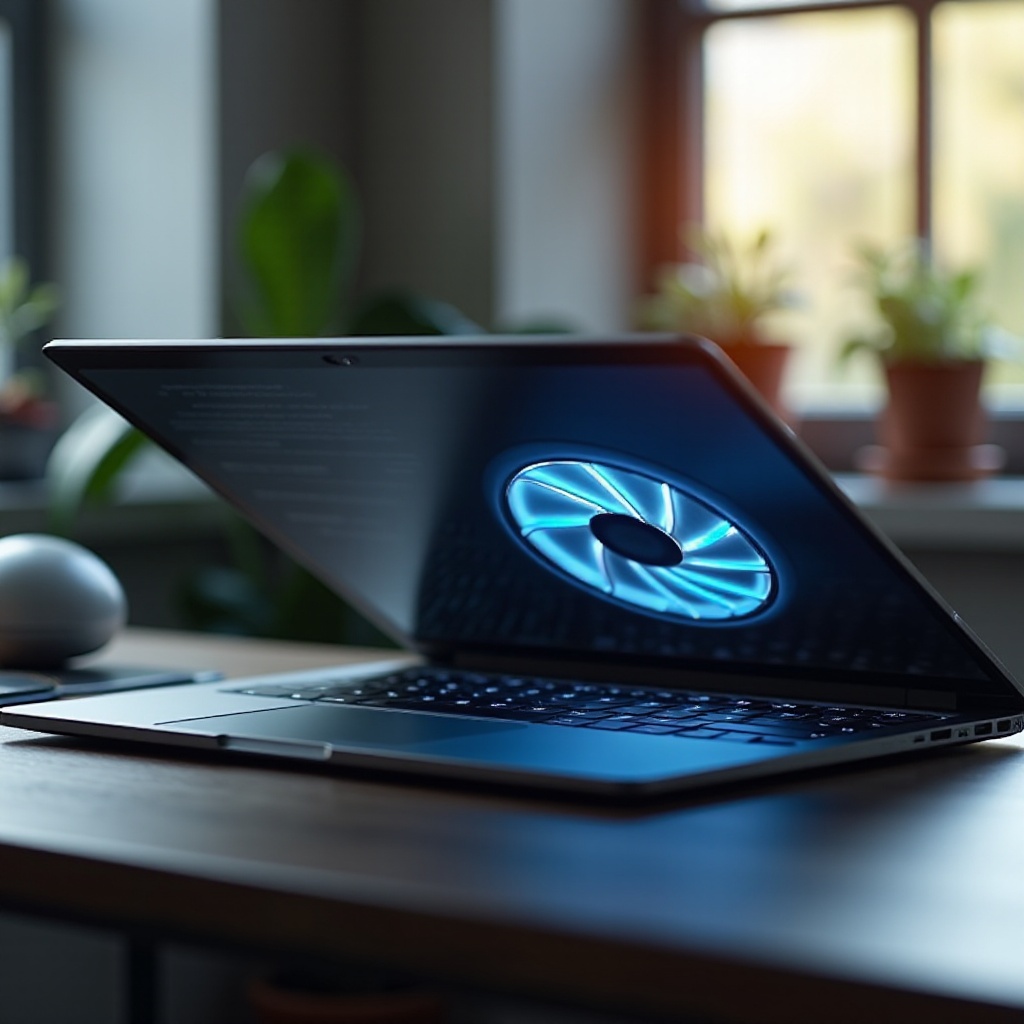
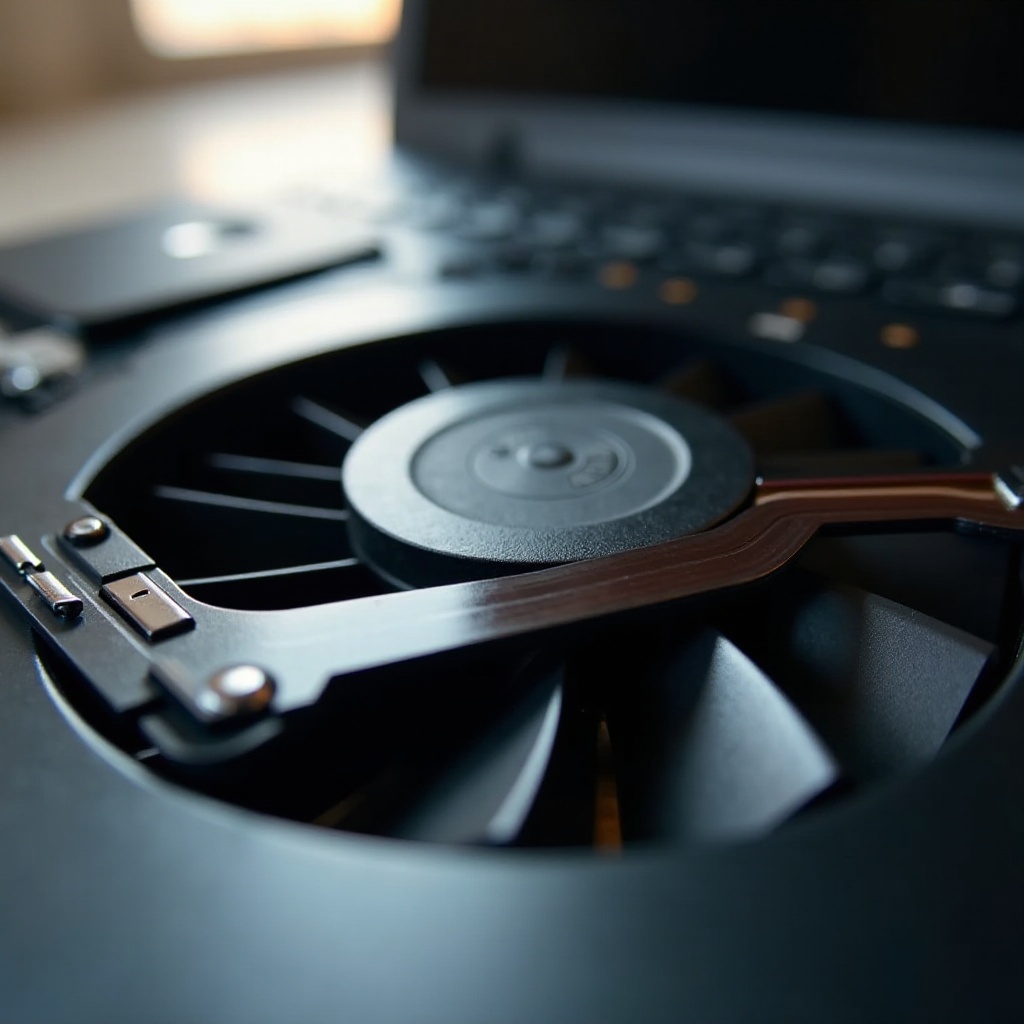
Laptop cooling fans play a vital role in heat regulation by dissipating the heat produced by the CPU and GPU. When these components process tasks, they generate considerable heat that needs to be managed to prevent overheating. The fan draws in cooler air from outside, circulating it inside to stabilize the internal temperature. There are two main types of fans, axial and centrifugal, each designed to manage heat effectively.
Common Signs Your Laptop Cooling Fan Needs Attention
Recognizing when your cooling fan requires maintenance can prevent bigger issues. Here are common warning signs:
- Unusual Noises: Grinding or whirring sounds can signal fan trouble.
- Overheating or Shutdowns: Frequent overheating or sudden shutdowns may indicate inefficient cooling.
- Reduced Performance: Performance slowdown or freezing might be a result of overheating components.
Identifying these issues early and addressing them can prevent further hardware damage or total system failure.
How Laptop Cooling Fans Operate
A clear understanding of cooling fan operation aids in maintaining them effectively. Here’s how they function:
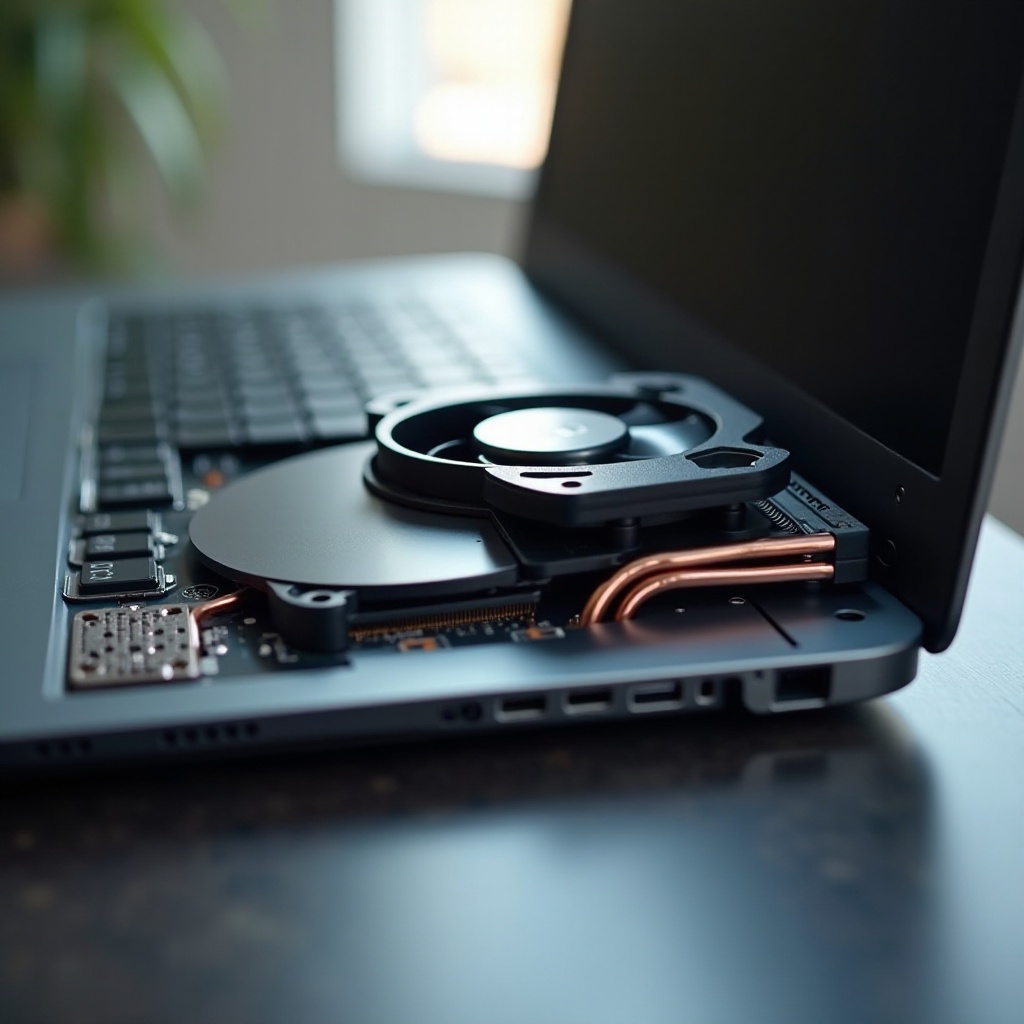
- Heat Transfer Mechanisms: The fan channels heat from critical components to heat sinks for dissipation.
- Types of Cooling Fans: Axial fans move air parallel to the fan’s axis, while centrifugal fans push air out perpendicularly, both efficiently managing heat.
Efficient fan operation ensures safe operating temperatures, facilitating optimal laptop performance.
Maintaining Your Laptop’s Cooling Fan for Optimal Performance
Regular upkeep of your cooling fan prolongs its life and enhances laptop efficiency. Follow these maintenance tips:
- Regular Cleaning Tips: Dust can clog your fan, reducing efficiency. Use compressed air to clean your laptop’s vents and fan regularly.
- Environmental Considerations: Use your laptop on hard surfaces for better airflow. Avoid soft surfaces like beds that block ventilation.
- Avoiding Overload Scenarios: Demanding applications can overwork your fan. Monitor CPU usage and close unnecessary programs to minimize strain.
These practices are straightforward yet effective in ensuring your laptop stays cool.
The Importance of Replacing a Faulty Cooling Fan
Even with routine maintenance, sometimes a replacement is needed. Here’s why and when:
- Signs It’s Time for Replacement: Persistent noises or a silent fan despite cleaning are signs that replacement is necessary.
- Impact on Laptop Longevity: Not replacing a faulty fan can cause overheating, damaging your laptop’s core components.
Regular inspections and prompt replacements can protect your laptop from serious operational issues.
Alternatives and Enhancements for Cooling Solutions
While internal fans are primary, external solutions can supplement cooling effectively:
- External Cooling Pads: These devices offer additional cooling by enhancing airflow from below, aiding in heat dissipation.
- Software Solutions for Temperature Monitoring: Various tools are available to monitor your laptop’s temperature, adjust fan speeds, or alert you to temperature spikes.
These enhancements ensure comprehensive cooling management, especially during high-performance tasks or prolonged use.
Conclusion
The cooling fan on a laptop is more than a small rotary device; it’s essential for optimal performance and longevity. Adhering to maintenance practices, being observant of failure signs, and exploring additional cooling options collectively preserve your laptop’s functionality and extend its lifespan.
Frequently Asked Questions
How often should I clean my laptop’s cooling fan?
For best results, clean your laptop’s cooling fan every three to six months, depending on usage and environmental conditions.
Can I replace my laptop cooling fan myself?
Yes, if you’re comfortable opening your laptop. However, professional assistance is recommended to avoid accidental damage.
What is the cost of replacing a laptop cooling fan?
The cost can range from $20 to $100, depending on the model and whether you choose professional installation.