How to Permanently Turn Off Live Photos on Your Smartphone
Introduction
Live Photos add a creative dimension to your photo-taking experience by capturing short videos alongside still images. Although captivating, Live Photos can significantly consume storage space and present privacy issues. Mastering the control of this feature is key to optimizing your device’s performance. This guide reveals how to permanently turn off Live Photos on your smartphone, helping you streamline photo storage while maintaining creative control.
What Are Live Photos?
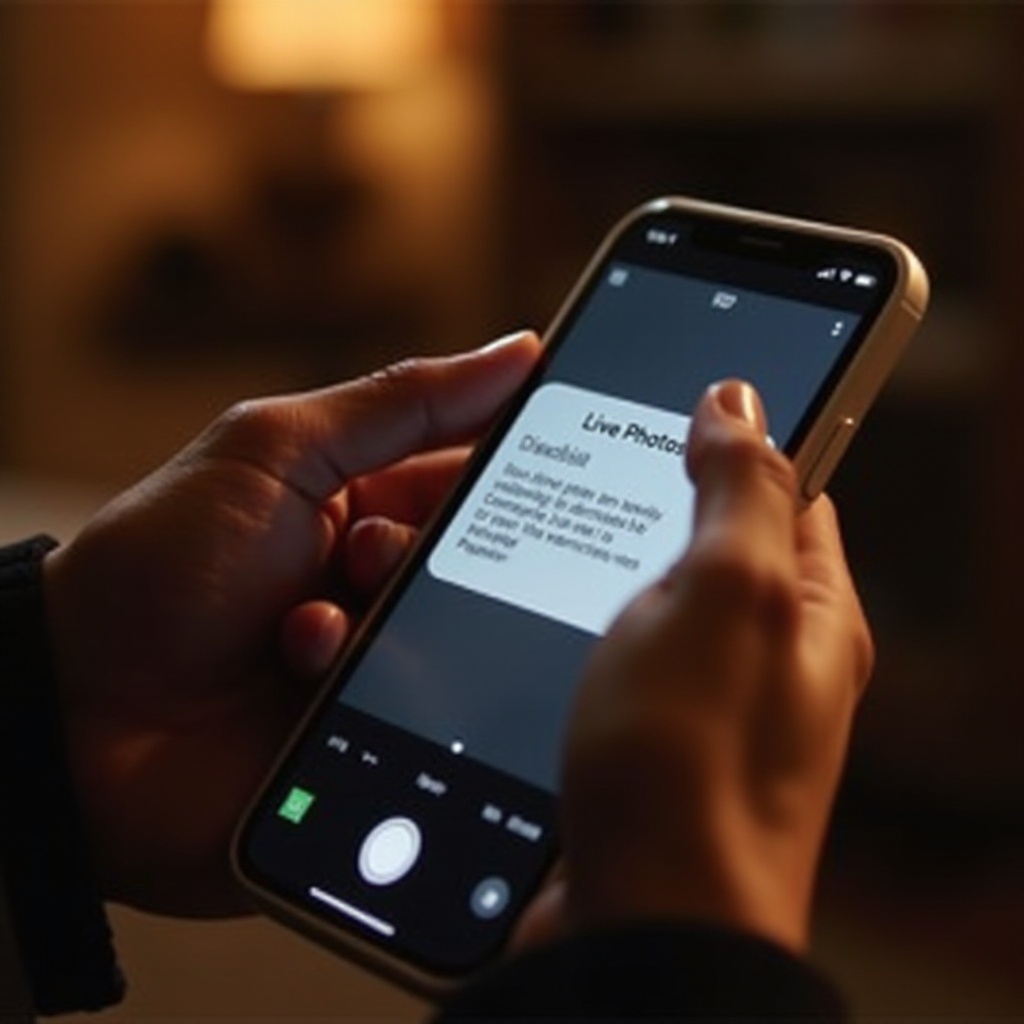
On Apple devices, notably introduced with the iPhone 6s, Live Photos capture 1.5 seconds of motion and sound before and after taking a picture, creating a mini-video. This feature invigorates your photographic collection; however, it inflates file sizes since each Live Photo comprises both photo and video data. Recognizing its impact on storage is vital for efficient memory management.
Live Photos can indeed bring images to life, but do they align with your need for efficient space usage? If freeing up storage and boosting device speed resonate more with you, considering alternatives is prudent.
Reasons to Disable Live Photos
Disabling Live Photos warrants attention due to three primary concerns:
- Storage Management: Large file sizes restrict your photo library capacity.
- Privacy Concerns: Capturing more than a single moment may unintentionally reveal sensitive information.
- Software Compatibility: Some devices or platforms may struggle to handle Live Photo formats.
Moving back to still images can refine your approach to sharing and editing, helping you avoid unnecessary complications.
Step-by-Step Guide to Turning Off Live Photos on iPhone
Accessing Camera Settings
- Launch the Camera app on your iPhone.
- Locate the Live Photos icon (a series of concentric circles) at the top.
- Tap once to disable it; a slash will appear through the icon, indicating Live Photos is off.
Adjusting Default Settings
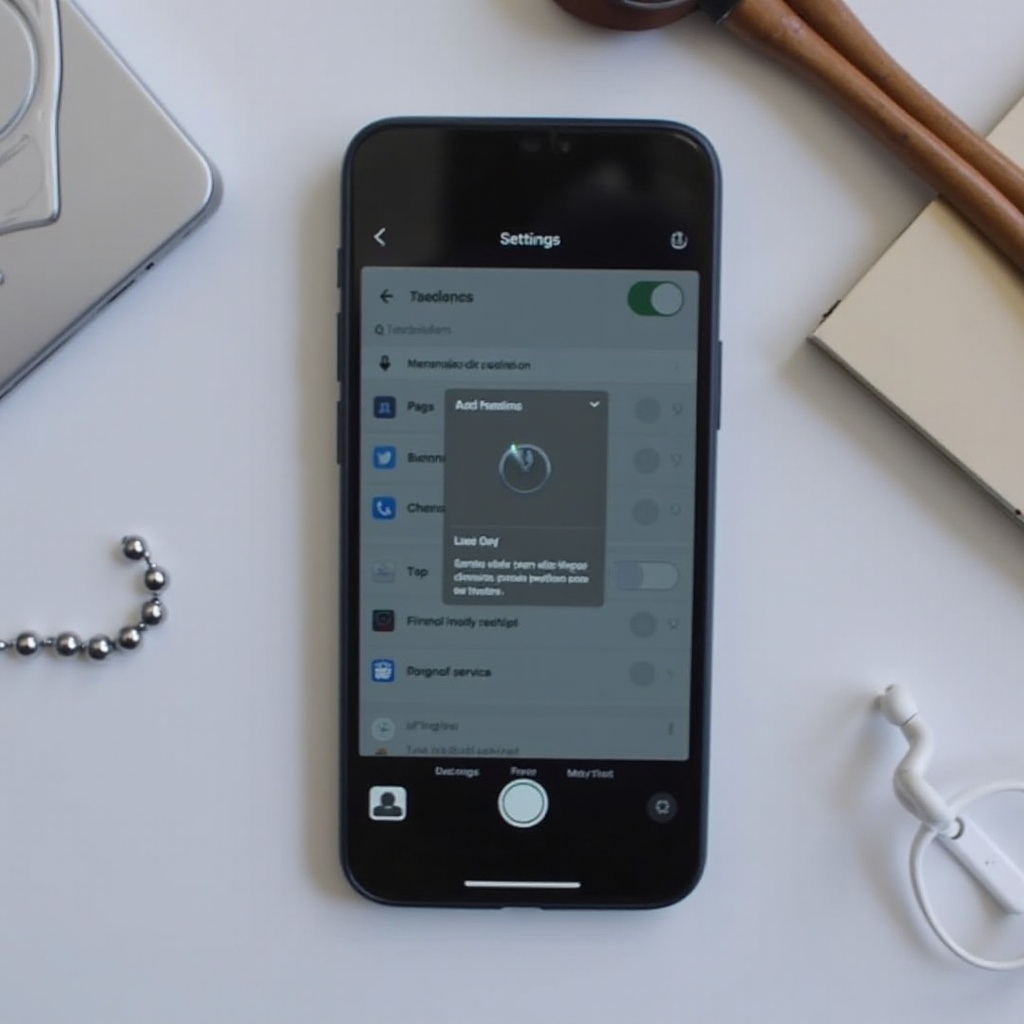
- Open the Settings app.
- Navigate to ‘Camera’.
- Tap on ‘Preserve Settings’.
- Toggle on the switch for Live Photos to ensure your settings are remembered every time you open the Camera app.
Having disabled the feature, how can we ensure these changes remain intact, especially with software updates?
Ensuring Live Photos Stay Off Permanently
Maintaining your settings over time requires vigilance, especially during software updates.
Verifying Settings Remain Consistent
Periodically access the Camera app to confirm the Live Photos icon remains with a slash.
Using Software Updates to Maintain Preferences
- Regularly check camera settings during updates.
- Retain a manual backup of preferences to swiftly restore settings if required.
Transitioning from iPhones, let us explore how to manage Live Photos on other Apple devices, ensuring cross-device consistency.
Managing Live Photos on Other Devices
For those using iPads or MacBooks, Live Photos management modifies slightly:
- On iPads, follow the same steps as an iPhone to disable in the Camera app.
- For MacBooks, use the Photos app to handle or convert Live Photos to static images, simplifying storage management.
Alternatives to Live Photos
Consider Burst Mode for capturing fast-moving scenes without video data, conserving storage efficiently. Alternatively, explore apps focusing on high-resolution still photography, ensuring quality images without Live Photos’ movement.
Juggling alternatives can seem daunting; however, let’s dive into strategies for achieving stunning smartphone photography without Live Photos.
Best Practices for Smartphone Photography Without Live Photos
Enhance your photography skills with these tips:
- Leverage natural lighting to enrich image clarity and detail.
- Try different angles and compositions for a creative edge.
- Explore post-processing apps with advanced editing features, compensating for the vibrancy often associated with Live Photos.
Ultimately, understanding these strategies will enable you to capture memorable images, free from the limitations posed by Live Photos.
Conclusion
Disabling Live Photos can unlock storage and simplify photo management. By following steps to turn off this feature and employing best practices in photography, you grant yourself the freedom to take outstanding images without the burden of unnecessary data or involuntary recordings. Frame your moments your way, without the hassle.
Frequently Asked Questions
Can I turn off Live Photos for existing pictures?
Yes, you can convert Live Photos to still images by editing them in the Photos app.
Do Live Photos take up more storage than regular photos?
Yes, Live Photos combine still images with video clips, resulting in larger file sizes than standard photos.
Will disabling Live Photos affect photo quality?
No, disabling Live Photos does not affect the quality of your still images; it merely stops recording the additional video data.