Microphone on Android Not Working: Troubleshooting Guide
Introduction
Experiencing issues with the microphone on your Android device can be quite frustrating and disruptive, especially when you rely on it for essential tasks like phone calls or voice-command features. Whether the problem occurs during calls, in apps, or manifests as poor sound quality, resolving it swiftly is crucial to maintain seamless communication and functionality. This comprehensive troubleshooting guide aims to equip you with practical solutions to identify and resolve common microphone issues on Android devices. From simple tips to advanced fixes, we’ll explore a variety of options to help restore your microphone to optimal performance.
Common Causes of Microphone Malfunction on Android Devices
Understanding the underlying causes of microphone malfunctions is crucial for effective troubleshooting. Several factors can cause your microphone to stop functioning:
-
Software Glitches: Temporary bugs, software updates, or app conflicts can interfere with microphone functionality. Such glitches often occur after installing a new OS update or an app that hasn’t been optimized.
-
App Permissions: A non-functional microphone often results from neglected permissions settings. For your microphone to work, the app requiring microphone access must have its permissions enabled.
-
Hardware Damage: Physical damage, such as exposure to water, drops, or dust accumulation, can commonly lead to microphone issues and may require professional repair.
Recognizing these common causes is essential for efficiently tackling the problem. With this foundational understanding, we can proceed to address these issues using a variety of solutions.
Quick Fixes to Try First
Before pursuing more intensive solutions, starting with quick fixes can often resolve issues rapidly.
Restart Your Phone
A simple restart can resolve minor software glitches that affect microphone performance. Simply power off your device and turn it back on to see if the issue persists.
Check App Permissions
Ensure the concerned app has access to the microphone. Go to Settings > Apps, select the relevant app, and ensure microphone access is enabled under permissions.
Test in Safe Mode
Boot your device in Safe Mode to determine if third-party apps are causing the issue. To do so, press and hold the power button, tap and hold ‘Power off’, and choose ‘Safe Mode’. Test the microphone to see if the problem persists.
Checking and Updating Software
If quick fixes don’t resolve the issue, outdated software might be to blame. Ensuring that both the Android OS and individual apps are updated can eliminate software conflicts.
Update Android OS
Keeping your Android operating system updated is essential. Navigate to Settings > System > System Update to check for any available updates and install them promptly.
Update Individual Apps
Outdated apps can cause conflicts with microphone function. To update, open the Google Play Store, tap the menu, select ‘My apps & games’, and update any apps requiring it.
Dealing with Hardware Issues
If updating software does not improve the situation, a hardware problem might be present. Let’s explore ways to address potential hardware issues.
Cleaning the Microphone
Dirt and debris can obstruct the microphone. Gently clean the microphone area using a pin and a soft brush to remove dust. Avoid pushing debris further into the hole.
Examining for Physical Damage
Look for any visible damage to the microphone or surrounding area. If you discover cracks or other signs of physical damage, technical repair may be necessary.
Advanced Solutions and Tools
If simpler solutions and physical checks don’t work, consider exploring advanced tools and apps.
Using Sound Enhancer Apps
Sound enhancer apps can optimize microphone performance by adjusting sound settings. Apps like ‘MicFix’ can improve microphone sensitivity and quality.
Third-Party Repair Tools
Some third-party tools offer diagnostics and repairs for software-related microphone issues. Apps like ‘COFFEE’ help identify and rectify conflicts affecting microphone performance.
When to Seek Professional Help
If none of the solutions provided resolves the issue, it’s wise to consult a professional. Persistent microphone problems might indicate complex hardware damage that requires expert repair. Reach out to your manufacturer or a trusted repair service to identify and resolve intricate issues.

Alternatives to the Built-in Microphone
While trying to resolve issues, you might need alternatives to maintain audio functionality.
Bluetooth Solutions
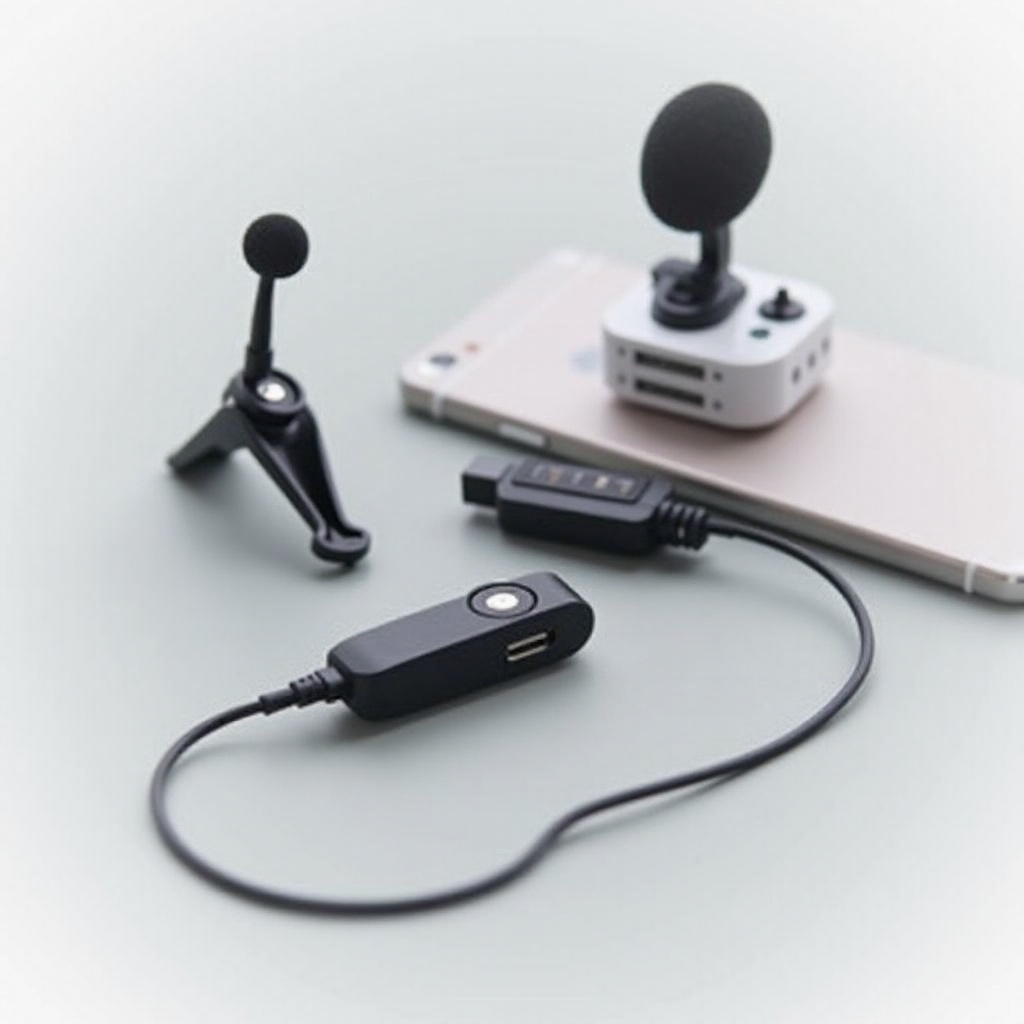
Bluetooth headsets offer a wireless alternative to the built-in microphone. Pair your device with a Bluetooth-compatible headset for hassle-free communication.
Headset Microphone Options
Wired headsets with built-in microphones provide another option, often offering superior sound quality. Connect through the headphone jack or a USB-C adapter for seamless integration.
Conclusion
Microphone issues on Android devices can disrupt everyday tasks, but identifying the root cause and trying both quick and in-depth solutions can restore functionality. From exploring software updates to considering professional help, a range of options are available to get your microphone working again. We hope this guide has been helpful in navigating microphone problems and improving your Android experience.
Frequently Asked Questions
Why is my microphone not working during phone calls on Android?
Ensure that the microphone is unobstructed and app permissions are correctly configured. Restarting your device may help resolve temporary glitches affecting the microphone during calls.
Can system updates fix microphone problems?
Yes, system updates can resolve software glitches affecting microphone functionality. Regularly updating your device ensures the latest bug fixes and optimizations are applied.
Should I visit a repair center if my Android microphone still doesn’t work?
If all troubleshooting methods fail, visiting a repair center is advisable. They can diagnose and fix complex hardware issues that might not be apparent with standard troubleshooting.