
How to Restore System Settings to Default on PS4: A Comprehensive Guide
Introduction
When your PlayStation 4 starts showing signs of trouble, such as slow performance or frequent errors, resetting the system settings to default can be an effective solution. A comprehensive understanding of this process is invaluable for any PS4 owner aiming to maintain optimal device performance. This guide will walk you through the necessary steps to safely restore your PS4 to its original factory settings. With this knowledge, you can troubleshoot or manage your console more effectively, ensuring a top-notch gaming experience.

Understanding the Importance of Restoring PS4 Settings
Restoring your PS4 settings to default is more than a last resort; it is an essential troubleshooting tool that can resolve a myriad of issues. From clearing corrupted data to improving system functionality, a reset acts as a reset button for your console’s performance. Not only does this provide a fresh start, but it also empowers you with the confidence to tackle tech-related challenges on your own. Knowing how to restore settings effectively maximizes the lifespan of your console, ensuring it operates at its best.
When and Why to Restore PS4 to Default Settings
Identifying the occasions for a reset helps in making well-informed decisions concerning your PS4’s maintenance. Scenarios like frequent system crashes, unresponsive controllers, or recurring errors may necessitate a restoration to default settings. Delving deeper into the reasons:
-
Troubleshooting Persistent Issues: A reset can solve problems that have persisted despite other troubleshooting efforts.
-
Enhancing Performance: Clearing software clutter through a reset can rejuvenate your console’s speed and responsiveness.
-
System Upgrades or Changes: After firmware updates, restoring settings may rectify compatibility issues and stabilize performance.
Recognizing these circumstances will guide you in opting for a reset when necessary, keeping your PS4 in prime condition.
Preparing Your PS4 for a Reset
To safeguard against data loss during a reset, it’s vital to prepare your PS4 in advance. Here’s what you should do:
-
Backing Up Important Data
Ensure all valuable saved games, screenshots, and content are stored either on a USB storage device or an external hard drive. If you’re a PlayStation Plus subscriber, uploading your data to the cloud offers an additional safeguard.
-
Syncing User Accounts
To avoid data loss post-reset, confirm all user trophies and account details are synced online. Check account settings thoroughly and consider deauthorizing your console if needed.
These preparations will protect your data, ensuring a hassle-free recovery process after the reset.
Step-by-Step Guide to Restoring PS4 Settings
Execute the reset by following these steps:
-
Accessing the Initialization Menu
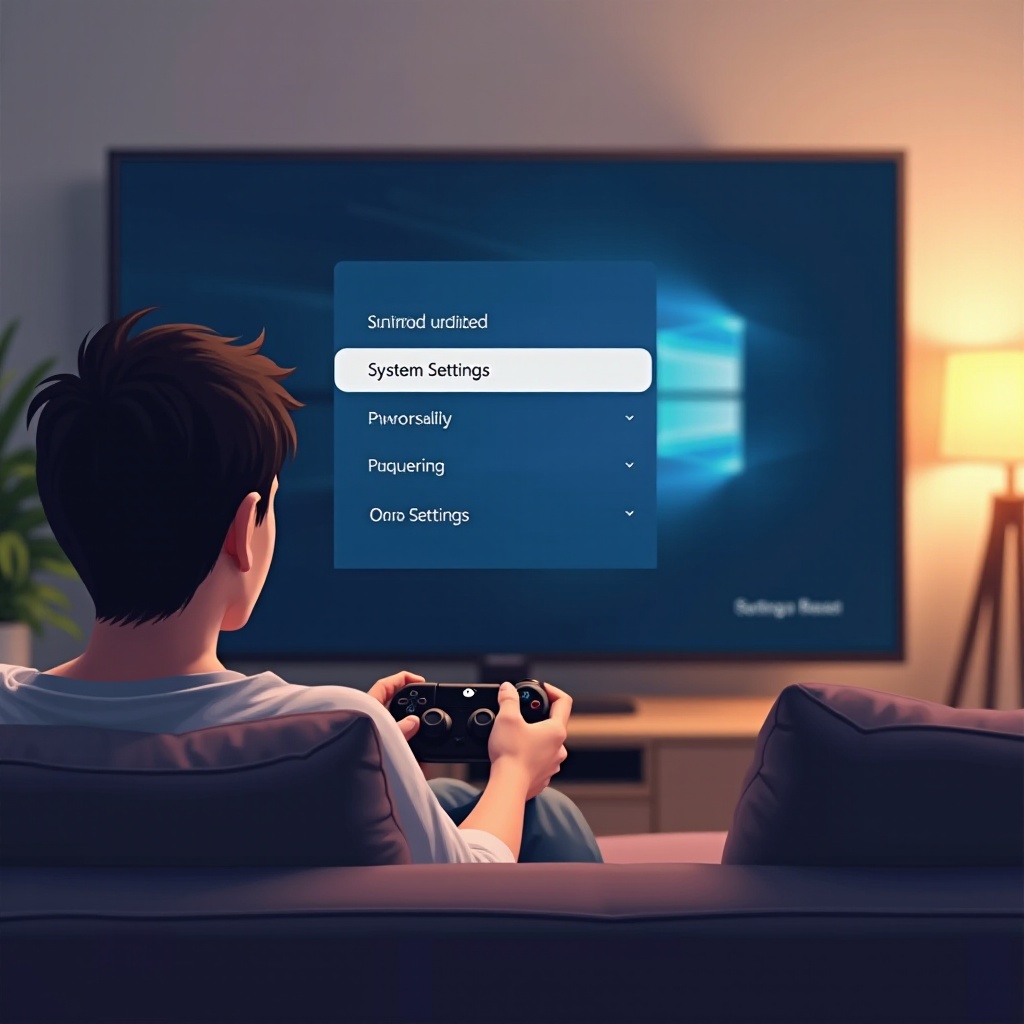
Power on your PS4 and proceed to the ‘Settings’ menu. Then scroll down to select ‘Initialization.
-
Selecting the Correct Reset Option
Within Initialization, you can choose either ‘Restore Default Settings’ or for a more thorough approach, ‘Initialize PS4.’ The former keeps your games and apps, whereas the latter wipes your system clean.
-
Confirming the Reset Process
Follow the on-screen instructions to confirm your selections. Allow the console to complete the reset process, which may take some time.
These instructions ensure a seamless reset process tailored to your specific needs.
What to Expect After Restoring to Default Settings
Post-reset, you will need to undertake several steps to restore full functionality to your PS4:
-
Reinstalling Games and Applications
If you opted for ‘Initialize PS4,’ you would need to reinstall all games. Ensure that licenses are synced by logging back into your PlayStation Network account.
-
Reconfiguring System Preferences
Re-establish preferences such as language, time zone, and account settings. Customize display and audio settings to match your prior configurations.
Attending to these details promptly will restore your gaming environment effectively.
Troubleshooting Common Issues Post-Reset
Sometimes, a reset can uncover or introduce new issues. Addressing these problems swiftly ensures minimal disruption:
-
Connectivity Problems
Restore internet connectivity by reconnecting to Wi-Fi or a LAN cable. Re-enter Wi-Fi credentials and perform necessary firmware updates.
-
Data Recovery Solutions
Should data loss occur, utilize cloud backups or external storage for retrieval. Confirm all accounts are properly logged in to regain access to stored information.
Timely handling of these potential issues will enhance your overall gaming experience.
Conclusion
Restoring your PS4 settings to default can significantly enhance the performance and resolve persistent issues within the console. By thoroughly preparing and understanding each restoration step, you ensure a safe and efficient process. Whether your goal is to troubleshoot or refresh your console, following this guide helps maintain system reliability and elevates your gaming enjoyment.
Frequently Asked Questions
Will Restoring Settings Delete My Saved Games?
Choosing ‘Restore Default Settings’ will not delete your games, but selecting ‘Initialize PS4’ will remove all installed games from the system.
How Often Should I Reset My PS4?
Reset your PS4 sparingly, only when addressing persistent issues or after significant changes. Routine resets are not necessary.
Can I Restore Settings Without Losing Data?
To minimize data loss, back up data externally beforehand and choose the less extensive reset option available.