
How Often to Replace a Laptop: Clear Lifespan, Signs, and Smart Upgrade Paths in 2026
Introduction
Your laptop should serve you, not slow you down. The right replacement timing protects your time, your data, and your budget. It also prevents wasteful early upgrades. The best answer depends on your work, hardware tier, and software support window. This guide gives clear refresh ranges by user type, then explains how build quality and thermals shape lifespan. You will learn to spot signs that signal replacement, plus upgrades that buy 1 to 3 more years when the core platform still fits. We also cover operating system support and security updates, which can force a refresh even when hardware still boots. From there, we connect workload changes and cost math to a decision you can justify. You finish with buying windows, balanced spec targets for 2024–2026, and a step by step decision tree. First, get the quick answer so you can place yourself in the right lane.

Quick Answer: How Often to Replace a Laptop by User Type
Most people do better with a refresh window, not a fixed date. Your workload and the stress you place on the system set the pace.
- Casual and home users: Replace every 5 to 6 years. With an SSD and a fresh battery, stretch to 7 if performance stays smooth.
- Students: Replace every 4 to 5 years to cover a full academic path. Choose a mid range CPU and 16 GB RAM to last.
- Remote and office workers: Replace every 3 to 4 years. Battery life, webcam quality, Wi‑Fi, and quiet thermals matter daily.
- Creators and gamers: Replace about every 3 years. Thermal limits and GPU demands push upgrades sooner.
- Developers and data pros: Replace every 3 to 4 years. Cores, RAM, and NVMe speeds drive builds and containers.
- Field workers: Replace every 3 to 4 years, often aligned with warranty. Ruggedness and battery cycles lead the decision.
These ranges set expectations. Next, match your use case to your hardware tier, because build quality and repairability also affect how long a laptop stays viable.
Average Lifespan by Hardware Tier: Budget, Mid-Range, Premium, Workstation/Gaming
Hardware tier signals durability, thermal design, and upgrade options.
- Budget tier: Often ships with a low power CPU, 8 GB RAM, and a small SSD. Expect 3 to 4 years. Thermals and soldered parts limit upgrades. Light workloads and careful maintenance help.
- Mid range: Better CPUs, 16 GB RAM, and 512 GB SSDs are common. Expect 4 to 5 years. Cooling improves, and RAM or SSD upgrades may be possible on some models.
- Premium ultrabook: Metal chassis, sturdy hinges, and efficient cooling stand out. With 16 to 32 GB memory and strong build quality, expect 5 to 6 years of useful life.
- Workstation or gaming: High power CPUs and GPUs deliver speed but push heat and fans. Expect 4 to 6 years with regular cleaning and occasional part replacements, like batteries and fans.
These ranges assume normal use and basic care. A clean OS, dust removal, and battery replacement stretch lifespan across every tier. Now let us look for the clear signs that a replacement beats another repair.
10 Signs It’s Time to Replace, Not Repair or Upgrade
You can save time and money by watching for these signals. If several show up together, a new laptop often wins.
1) Boot and app launch remain slow after a clean OS install and SSD health check. Persistent lag points to platform limits.
2) Fans run loud during light tasks and the chassis gets hot. Thermal throttling shows the cooling system and CPU are at their limit.
3) Battery life drops below three hours or the battery swells or fails safety checks. Safety and mobility suffer too much.
4) You hit full memory during normal use and see heavy swapping. Adding RAM is not possible on laptops with soldered memory.
5) The CPU or integrated graphics cannot meet current app requirements. Video calls stutter, timelines choke, or modern web apps crawl.
6) Frequent crashes or driver issues continue after updates and diagnostics. This hints at deeper board or power issues.
7) Ports, hinges, trackpad, or keyboard fail or feel unreliable. Daily friction adds real cost in lost time.
8) OS or security updates end soon, and your core apps need newer versions. Risk grows as support winds down.
9) You need more external displays, faster Wi‑Fi, or Thunderbolt, and adapters cannot cover the gap.
10) Repair estimates approach half the price of a capable replacement. The value case flips to buying new.
When two or more apply, lean toward replacing. Before you jump, check if a few low cost upgrades could buy another one to three years.
When an Upgrade Buys You 1–3 More Years: RAM, SSD, Battery, Thermals, OS Reset
Upgrades help when the core CPU and graphics still match your needs.
- RAM: Moving from 8 GB to 16 or 32 GB stops constant swapping and makes multitasking smoother. Only possible when memory is not soldered.
- SSD: An NVMe drive with more capacity slashes boot and load times. It also gives room for apps, scratch files, and VMs.
- Battery: A genuine replacement can restore all day power. Check cycle count and swelling first, then compare OEM vs third party options.
- Thermals: Clean fans, replace thermal paste, and clear dust. Cooler parts sustain boost speeds and reduce throttling.
- OS reset: A fresh install removes bloat, malware, and broken drivers. Back up first, then reinstall and update firmware.
- Wi‑Fi card: On some Windows laptops you can upgrade to Wi‑Fi 6 or 6E. That improves calls and large file sync.
These fixes work best on serviceable designs with spare slots. If the platform blocks upgrades or the CPU and GPU fall behind, replacement is the smarter move. Here is how to spot those limits.
When Upgrades Won’t Help: Soldered Parts, Weak CPU/GPU, Ports, Chassis Damage
Some constraints mark a hard stop for upgrades.
- Soldered memory or storage: With no open slot, you cannot add RAM or a larger SSD. You stay stuck with the original spec.
- Low end CPU or graphics: If the processor cannot keep up with common tasks or creative apps, extra RAM or a faster SSD cannot fix it.
- Outdated ports and I O: Lack of USB C, USB4 or Thunderbolt, HDMI 2.1, fast SD, or enough PCIe lanes limits modern workflows.
- Chassis cracks or hinge issues: Structural problems can return after repair, putting data and safety at risk.
- Board or power delivery faults: Intermittent power or VRM throttling suggest deeper, costly failures.
- Parts scarcity: When batteries, keyboards, or motherboards are hard to source, downtime and costs spike.
If you hit these walls, check your operating system and security support next. Even healthy hardware must stay patched.
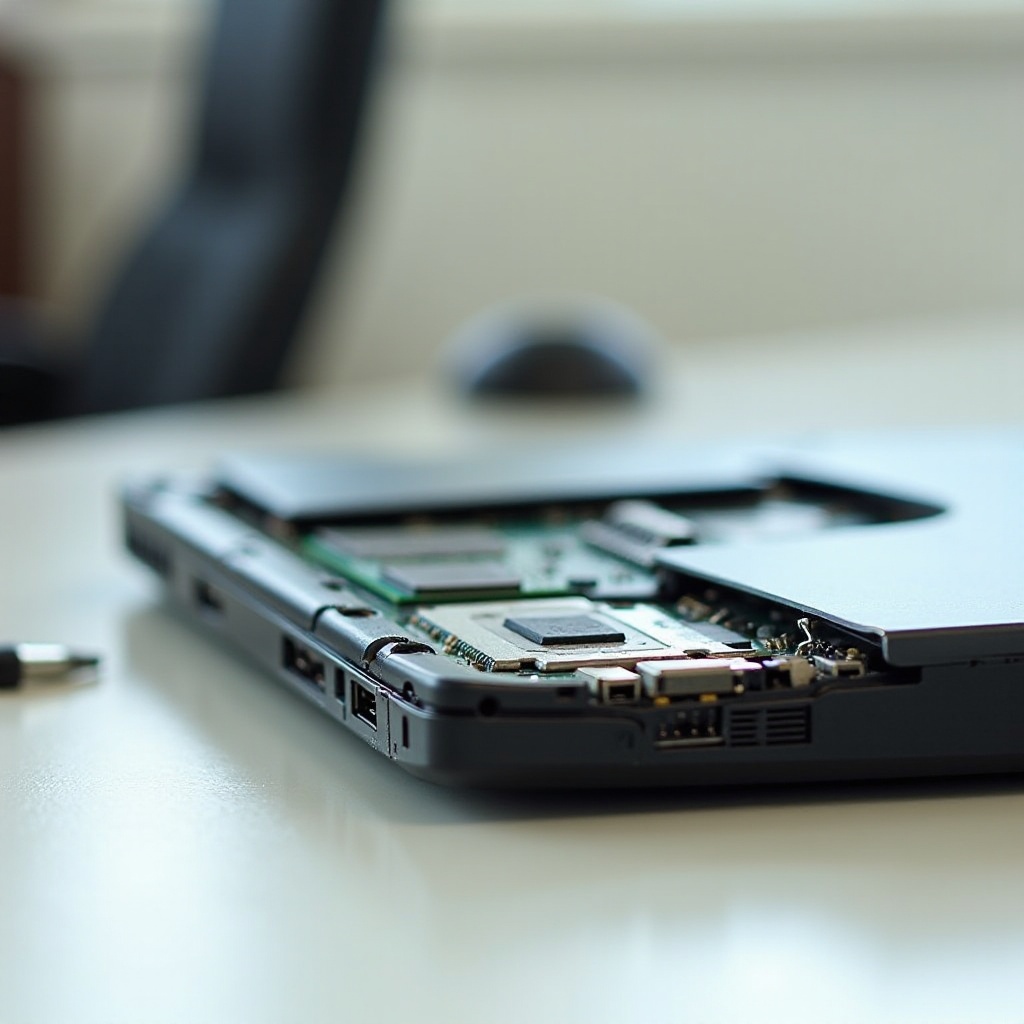
OS and Security Support Timelines: Windows, macOS, ChromeOS
Security updates are non negotiable. Unsupported devices expose your data and your employer.
- Windows laptops: Confirm support for current Windows releases, drivers, and firmware. Look for modern security features such as TPM 2.0 and virtualization based protection. If drivers stall, core features fail, or the device cannot meet current baselines, set a replacement date.
- macOS laptops: Apple supports models for many years, and Apple silicon shows strong longevity. Still, battery cycles and SSD wear can end useful life first. When macOS major updates stop or your pro apps require a newer version, plan the refresh.
- Chromebooks: Respect the Auto Update Expiration date. After AUE, you lose security updates. Treat AUE as a hard end for most users and schools.
If the OS path looks short, prepare a replacement plan before new app needs or compliance demands hit. Next, consider how changes in your work can force an earlier swap.

Workload Shifts That Force a Replacement: Video/AI, Gaming, Virtualization, Dev Tools
Hardware that once felt fast can slow when your tasks grow.
- Video and photo work: High bitrate codecs, RAW stacks, and 4K timelines need more CPU cores, GPU power, RAM, and fast scratch storage.
- AI and ML tasks: Local models, embeddings, and vector databases thrive on more VRAM, unified memory, and fast NVMe throughput.
- Gaming: New engines and higher fidelity assets need modern GPUs and better cooling. External GPUs help in some cases but not all.
- Virtualization and containers: Multiple VMs, Docker, and Kubernetes clusters require more cores, memory, and I O bandwidth.
- Collaboration demands: High quality calls, noise filtering, and multiple external displays can exhaust old iGPUs and Wi‑Fi.
If your workload changed, your laptop should match it. Now anchor the decision with cost math so you spend where it pays back.
Cost of Ownership Math: Repair vs Replace Break-Even
Use simple numbers to keep the choice objective and fair.
- Add up repair costs: battery, RAM, SSD, keyboard, fans, and any board work, plus labor. Over 40 to 50 percent of a solid replacement price points to buying new.
- Count time lost: Measure minutes wasted on slow boots, builds, renders, or syncs. Multiply by your hourly rate and weeks per year.
- Estimate lifespan gained: Will repairs buy 12 to 24 months or only a few months The shorter the gain, the weaker the case.
- Include trade in or resale: A healthier device sells for more now than later. That offsets new cost.
- Factor warranty: New laptops include fresh coverage. Old units often stack failures and downtime.
When numbers feel close, check OS support and performance gaps. If either is tight, replace. If upgrades buy years at low cost, extend and schedule the next review. With the plan set, hand off your old device responsibly.
Sustainability Options: Refurbish, Trade-In, Recycle, Donate
A smarter refresh also reduces waste and cost.
- Trade in with the manufacturer or a reseller to lower the price of your new laptop.
- Refurbish and sell if diagnostics pass and the battery is sound or replaced. Be transparent about condition.
- Donate to a school or nonprofit that accepts tested, wiped devices and can put them to work.
- Recycle through certified e waste programs when the device fails safety checks or repairs exceed value.
Always wipe data and remove drives if policy requires. Next, protect your data and settings before you swap hardware.
Data Migration and Backup Checklist Before You Swap
Back up and organize before the move so you avoid surprises.
1) Back up to two places: one cloud service and one external drive.
2) Export browser passwords, 2FA recovery codes, SSH keys, and license keys.
3) De authorize paid apps and services such as creative suites and media platforms.
4) Sync and export mail, calendars, notes, and chat files as needed.
5) Save app settings, templates, snippets, and IDE configs in a version controlled folder.
6) Create a full disk image if policy allows for a safety net.
7) Factory reset or wipe with full disk erase before trade in, donation, or recycling.
With data safe, you can time your purchase to hit better prices and newer chips without taking on too much risk.
Timing Your Purchase: Seasonal Deals and Product Cycles
Good timing increases value without much effort.
- Best windows: back to school, Black Friday and Cyber Monday, and late spring when new waves arrive.
- Watch CPU and GPU cycles: New generations often land late in the year, pushing discounts on prior models.
- Track business line refreshes: These follow predictable calendars. Outgoing models with strong build quality can be great deals.
- Bundle smart: Docks, monitors, and extended warranties often cost less in promo kits.
If your current laptop is failing, do not wait. Otherwise, plan a four to eight week comparison window and price track across a few trusted retailers. Once you choose a window, lock in the right specs for the next two years.
Spec Targets for 2024–2026 Baseline: CPU, RAM, Storage, Display, Ports, Wireless, Webcam
Aim for balanced specs that provide headroom without waste.
- CPU: Choose a modern multi core chip with strong single thread speed. Creators and devs benefit from higher sustained power and more cores.
- RAM: 16 GB is the safe minimum for general use. Step to 32 GB for creators, developers, and heavy browser or VM use.
- Storage: 1 TB NVMe for most users. Go 2 TB if you work with media libraries or multiple VMs. Prefer PCIe 4.0 or better.
- GPU: Integrated graphics work for office and web. Creators and gamers need capable discrete GPUs or high end integrated options with ample memory bandwidth.
- Display: 14 to 16 inches with good brightness. Target at least 300 to 400 nits, accurate color for creative work, and a 90 to 120 Hz panel for smoothness.
- Ports: At least two USB C ports, one with USB4 or Thunderbolt. Add HDMI for projectors and a fast SD reader if you handle cameras.
- Wireless: Wi‑Fi 6 or 6E as a minimum; Wi‑Fi 7 if available. Bluetooth 5.x for stable peripherals.
- Webcam and audio: 1080p webcam, dual or quad mics, and solid speakers for calls.
These baselines keep your laptop fast, connected, and secure through 2024–2026 and beyond. With targets in hand, turn the advice into action with a clear decision tree.
Decision Tree: Upgrade, Repair, or Replace
Follow these steps to reach a confident choice.
1) Check OS and security support end dates. If they end within 12 months, plan to replace.
2) Run diagnostics: storage health, RAM usage, thermals, and battery cycles.
3) If RAM and SSD are upgradable and the CPU meets your workload, upgrade parts first.
4) If key parts are soldered or the CPU or GPU bottlenecks your tasks, move to replacement.
5) Compare total repair cost with the price of a capable new model. If repairs exceed 40 to 50 percent, buy new.
6) Align the choice with your next 24 to 36 months of work and learning goals.
7) Schedule data migration, trade in or resale, and certified recycling for end of life.
This process turns a vague feeling into a plan. Now you can explain the decision, control costs, and hit deadlines.
Conclusion
Replace a laptop when it no longer protects your time, your data, or your security. Most users should plan a 3 to 6 year refresh window that reflects their work and hardware tier. Watch for clear signs like OS support ending, failing batteries, persistent throttling, or missing ports you now need. Try low cost upgrades if the platform still fits, and use cost math to avoid sunk costs. Time your purchase if you can, and pick balanced specs that hold up across 2024–2026. Wrap up with clean backups, a safe wipe, and responsible trade in or recycling. With a clear plan, you avoid guesswork and get more value from every laptop you own.
Frequently Asked Questions
Is it better to replace a laptop battery or buy a new laptop?
If performance still meets your needs and only the battery is weak, replace the battery. It is the best value fix. Check cycle count and safety. If the laptop also throttles, lacks needed ports, or loses OS support soon, buy a new device. Use the 40 to 50 percent rule for repair costs.
How often should a business replace employee laptops?
Most organizations refresh every 3 to 4 years. That aligns with warranties, OS support, and reduced downtime. Stagger refreshes to spread cost, track battery cycles and device health, and replace early for heavy users. Extend light users to a fifth year if diagnostics and security look strong.
Will a factory reset make an old laptop last longer?
A reset fixes bloat, malware, and driver conflicts. It can restore speed if storage and RAM are healthy. Combine with thermal cleaning and firmware updates. A reset cannot solve a weak CPU, soldered low RAM, or worn batteries. If stutter persists after a clean install, plan a replacement.