How to Delete Emoji from iPhone: Hide, Remove, and Disable Emoji, Memoji, and Stickers
Introduction
Emoji are fun until they get in the way. If you prefer a clean, text‑only keyboard, you can strip most emoji access from your iPhone. Apple bundles emoji inside iOS, so you cannot uninstall the emoji font or remove the characters themselves. What you can do is remove the Emoji keyboard, clear your recent emoji, delete custom Memojis and Live Stickers, turn off suggestions, and block third‑party keyboards that keep bringing emoji back. These steps apply to recent iOS versions, including iOS 17 and iOS 18.
This guide starts with fast wins, then moves into detailed cleanup. You will learn how to remove the Emoji keyboard, reset the keyboard dictionary to clear recents, delete sticker packs, manage third‑party apps, and lock down changes with Screen Time. The goal is simple: reduce clutter, stop interruptions, and keep typing focused on text.
Decide what you want before you begin. Do you want to hide emoji everywhere, clean up the frequently used list, remove your Memoji characters, or block apps that add sticker packs? Pick the outcome that matters most, then follow the matching section. If you change your mind later, you can restore everything in minutes.
What You Can and Can’t Delete on iPhone: Emoji vs. Memoji vs. Stickers
Understanding the parts helps you choose the right steps. Apple’s emoji set ships with iOS and lives in system fonts and keyboard services. You cannot delete that set from the operating system. You can remove access by deleting the Emoji keyboard and turning off suggestions.
Memoji are personalized avatars you create in Messages. Those live on your device and in iCloud if you sync. You can delete your Memoji characters and their sticker packs at any time. Live Stickers are custom stickers you make from photos; you can remove those packs too. Third‑party apps and keyboards add more emoji and stickers, sometimes with their own panels that ignore iOS settings. You can uninstall those apps and remove their keyboards.
In practice, most people get the best result by doing three things: remove the Emoji keyboard, reset the keyboard dictionary to clear recents, and delete or hide sticker packs. If you need stronger control, block third‑party keyboards and lock changes with Screen Time. Next, apply the fastest steps to cut the noise quickly.
Quick Steps: The Fastest Ways to Remove Emoji Access
Use these rapid actions if you want immediate relief with minimal effort:
- Remove the Emoji keyboard:
- Settings > General > Keyboard > Keyboards > Edit > delete ‘Emoji
- Clear frequently used emoji:
- Settings > General > Transfer or Reset iPhone > Reset > Reset Keyboard Dictionary
- Turn off emoji suggestions:
- Settings > General > Keyboard > Predictive (off)
- Delete custom Memoji and Live Stickers:
- Messages > Stickers drawer > find packs > delete or hide
These quick steps hide the emoji keyboard, clear your recents, and strip custom sticker content. If you still see emoji in certain apps, or you want deeper cleanup, continue into the methods that follow. Each section builds on the last so you can reach a stable, low‑distraction setup.
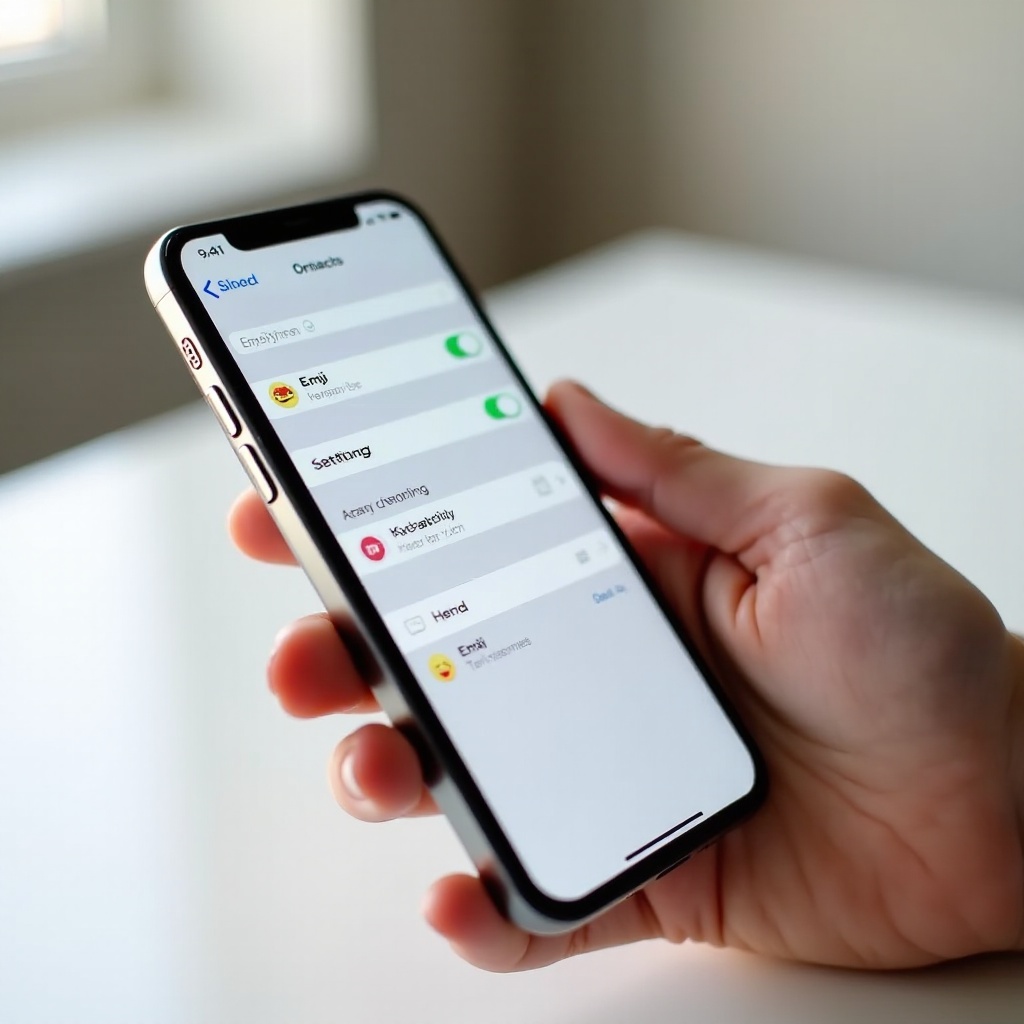
Method 1: Remove the Emoji Keyboard from iOS
Removing the Emoji keyboard removes the main entry point for emoji in iOS. This stops most emoji panels from appearing in the keyboard switcher and reduces suggestions.
- Open Settings.
- Go to General > Keyboard > Keyboards.
- Tap Edit in the top right. If Edit does not appear, swipe left on ‘Emoji’.
- Tap the red minus next to ‘Emoji’, then tap Delete to remove it.
- Optional: Reorder your remaining keyboards so your primary language sits at the top.
Notes and Tips
- Keep your language keyboards if you type in more than one language. Removing ‘Emoji’ does not touch those.
- Some apps ship their own emoji panel. For example, WhatsApp shows emoji within the app even if the iOS Emoji keyboard is gone. You will manage those in the app‑specific section.
- To add the Emoji keyboard back later: Settings > General > Keyboard > Keyboards > Add New Keyboard > Emoji.
With the Emoji keyboard removed, you may still see old emoji in the frequently used section inside certain apps. Clear those next by resetting the keyboard dictionary.
Method 2: Clear ‘Frequently Used’ Emoji by Resetting the Keyboard Dictionary
The ‘Frequently Used’ grid pulls from your typing and sticker history. Resetting the keyboard dictionary clears learned words, shortcuts, and emoji recents in one move.
- Open Settings.
- Go to General > Transfer or Reset iPhone > Reset.
- Tap Reset Keyboard Dictionary.
- Enter your device passcode and confirm.
What Changes When You Reset
- iOS removes learned autocorrections and any custom text replacements.
- The ‘Frequently Used’ emoji grid resets, so recent emoji disappear.
- Your language keyboards remain installed, and dictation continues to work.
If you do not want to reset, there is a softer workaround: avoid using emoji for a while and send plain text. The system will promote text items into recents over time. That approach is slower and incomplete. The full reset is faster and more reliable. Once recents are clean, remove Memoji characters and their sticker packs to stop Memoji from appearing in the Stickers drawer.
Method 3: Delete Memoji Characters and Emoji Stickers
Memoji and their stickers can crowd the Stickers drawer and suggestions. Deleting a Memoji removes its sticker pack.
- Open Messages and enter a conversation.
- Tap the Stickers drawer near the compose field.
- Tap the Memoji button (the faces icon).
- Tap the three dots or Edit, choose the Memoji you want to remove, then tap Delete.
- Repeat for each Memoji you no longer want.
Hide Without Deleting
- In the Stickers drawer, tap Manage or Reorder if available.
- Toggle off packs you do not want to see, or move them to the end of the list.
When you delete a Memoji, its sticker pack disappears. If you created multiple variations, remove each one. Deleted Memoji do not remove any photos or media on your device. If your Stickers drawer still shows custom content, you likely made Live Stickers from photos. Remove those next.
Method 4: Remove Custom Live Stickers and Sticker Packs
Live Stickers and third‑party sticker packs appear alongside Memoji in the Stickers drawer. You can delete them one by one or hide entire packs.
- Open Messages and tap the Stickers drawer.
- Find your Live Stickers or custom pack.
- Press and hold a sticker, then choose Delete or Remove.
- If you see a Manage icon (slider or grid), open it and delete or hide packs you do not use.
Extra Considerations
- Deleting a sticker does not remove the original photo from the Photos app.
- Some packs come from external apps. You may need to uninstall the app to fully remove the pack.
- After you clean packs, reset the keyboard dictionary again if old recents linger.
With custom content removed, reduce interruptions from suggestions and predictive features so emoji no longer pop up while you type.
Method 5: Turn Off Emoji and Sticker Suggestions in Keyboard and Messages
Turning off suggestions keeps the area above the keyboard focused on text. It also stops the system from swapping in emoji for certain words.
- Open Settings > General > Keyboard.
- Toggle Predictive off to stop the suggestion bar.
- If you see an ‘Emoji Stickers’ toggle, turn it off to hide emoji‑as‑stickers.
- Optional: Turn off ‘Auto‑Correct’ temporarily if shorthand triggers unwanted emoji.
In Messages, hide packs you do not use.
- Open the Stickers drawer.
- Tap Manage or Reorder if available.
- Hide or move packs so you do not see them by default.
This step pairs well with removing the Emoji keyboard. If you also use third‑party keyboards, clean those up next. That ensures external emoji sources cannot re‑enable panels you worked to remove.
Method 6: Manage or Delete Third‑Party Emoji Keyboards and Apps
Apps like Gboard, Bitmoji, and various sticker apps add emoji, GIFs, and sticker packs. Many bring their own suggestion bars and panels. Remove them if you want a strict text‑only setup.
- Open Settings > General > Keyboard > Keyboards.
- Remove any third‑party keyboards you no longer use.
- If you must keep one, open Settings > General > Keyboard and toggle ‘Allow Full Access’ off to reduce features.
- On your Home Screen, long‑press the app icon and tap Remove App to uninstall sticker or keyboard apps you do not need.
App Behavior and Privacy
- Some messaging apps bundle stickers internally, so iOS keyboard changes may not affect them.
- If a keyboard keeps re‑appearing, uninstall the related app and restart your iPhone.
- Reducing full access limits data sharing and remote features for third‑party keyboards.
Once you remove external sources, lock down the device so new keyboards and sticker packs cannot be added without your approval.
Method 7: Restrict Keyboard and Sticker Changes with Screen Time
Screen Time adds guardrails that keep your setup stable. Use it to block installs and limit access, especially on a child’s iPhone.
- Open Settings > Screen Time.
- Set a Screen Time passcode if you do not have one.
- Tap Content & Privacy Restrictions and turn it on.
- Go to iTunes & App Store Purchases:
- Set Installing Apps to ‘Don’t Allow’.
- Set Deleting Apps and In‑App Purchases based on your needs.
- Go to Content Restrictions > Apps and choose an age rating that limits sticker apps.
- Optional for families: Combine with Communication Safety and Contact limits.
With Screen Time configured, your device should remain clean and predictable. Some apps still manage emoji internally, so handle those with their own settings.
App‑by‑app Controls: Messages, WhatsApp, Telegram, and Discord
Different apps manage emoji and stickers in unique ways. Use their controls to finish the job.
Messages (Apple):
– Open a chat and tap the Stickers drawer.
– Use Manage or Reorder to hide packs.
– Delete Live Stickers and Memoji you created.
WhatsApp:
– Open a chat and tap the emoji icon.
– Go to the Stickers tab.
– Tap the plus icon > My Stickers.
– Delete packs you installed or hide packs you do not need.
Telegram:
– Open a chat and tap the stickers icon.
– Tap Settings or Manage.
– Remove or hide sticker packs; disable suggestions if the option exists.
Discord:
– Go to User Settings > Text & Images.
– Turn off sticker or emoji suggestions if available.
– Hide or disable server packs you do not use.
If you cannot find the option, search the app’s help center for ‘stickers’, ’emoji’, or ‘keyboard’. After app cleanup, run through a quick health check to make sure emoji stay gone.
Troubleshooting: If Emoji Still Appear or Re‑Enable Themselves
If emoji continue to pop up, work through these checks:
- The Emoji keyboard re‑added itself:
- Settings > General > Keyboard > Keyboards: remove ‘Emoji’ again.
- A third‑party keyboard is active:
- Remove the keyboard and uninstall its app.
- App‑specific emoji panels:
- Turn off or delete sticker packs inside the app.
- Recents did not clear:
- Reset the Keyboard Dictionary again and restart your iPhone.
- Sync brought items back:
- If you use iCloud with multiple devices, repeat these changes on your iPad or Mac where Messages sync.
- Software bugs:
- Update iOS to the latest version and restart.
Most issues resolve after removing the source app, clearing the keyboard dictionary, and restarting. If a stubborn app keeps re‑enabling emoji, block installs with Screen Time and use app‑level controls to hide sticker panels.
How to Restore Features If You Change Your Mind
You can put emoji and stickers back at any time. It takes less than a minute.
- Add back the Emoji keyboard:
- Settings > General > Keyboard > Keyboards > Add New Keyboard > Emoji
- Re‑enable suggestions:
- Settings > General > Keyboard > Predictive (on)
- Recreate Memojis:
- Messages > Stickers drawer > Memoji > Create New
- Reinstall third‑party keyboard or sticker apps from the App Store.
If Screen Time blocks installs, set Installing Apps back to ‘Allow’. You might prefer a flexible setup: keep emoji disabled during work hours, then restore them when you want playful chats. The process is reversible and safe.
Conclusion
You cannot erase Apple’s emoji from iOS, but you can control access to them. Start with the fast wins: remove the Emoji keyboard, reset the keyboard dictionary to clear recents, and turn off suggestions. Then delete Memoji characters, Live Stickers, and any third‑party apps that inject extra emoji panels. If you want a strict environment or you manage a child’s iPhone, lock changes with Screen Time.
With these steps, your keyboard stays clean, text stays front and center, and interruptions fade. If you decide to bring emoji back later, you can restore them in seconds. Your iPhone should fit your style: simple, predictable, and focused on what you want to say.
Frequently Asked Questions
Can I permanently delete Apple’s emoji from my iPhone?
No. Apple’s emoji are part of system fonts and keyboard services. You can remove the Emoji keyboard, clear recents, delete Memoji and stickers, and turn off suggestions to hide them. For strict control, also remove third-party keyboards and block installs with Screen Time.
How do I clear the ‘Frequently Used’ emoji without resetting all keyboard data?
There is no official button to clear only emoji recents. The fastest path is Reset Keyboard Dictionary: Settings > General > Transfer or Reset iPhone > Reset > Reset Keyboard Dictionary. A slower workaround is to avoid emoji for a while so text entries replace emoji in recents.
Will disabling the Emoji keyboard affect autocorrect or dictation?
Removing the Emoji keyboard does not affect autocorrect, dictation, or your language keyboards. Those features continue to work. App-specific emoji panels may still appear inside apps; hide or delete packs in each app, and remove third-party keyboards you do not need.