Best Free Android eBook Reader App for Phones (2026): Tested Picks and How to Choose
Introduction
Choosing the best free Android eBook reader app transforms a phone into a personal library that fits in a pocket. The right app keeps reading smooth, text crisp, and notes easy to manage. It can also save money by supporting free formats, public domain books, and library loans. A weak app does the opposite. It stutters with large files, buries settings, and nags with sign-in prompts or ads. You do not need that. You need fast access to your books and a layout that suits your eyes.
This guide focuses on free readers that excel on phones. We looked at one-handed navigation, page-turn speed, battery impact, and comfort at night. We tested popular picks across modern and budget Android phones. You will find quick recommendations, a clear test method, and practical advice for importing books and tuning settings. Each app profile highlights where it shines and what you trade for free access.
We start with a shortlist for fast decisions. Then we show how we tested and the features that matter most on small screens. That structure helps you pick a reader fast and fine-tune it for long sessions without strain.
Quick Picks: The Best Free Android eBook Reader App for Every Need
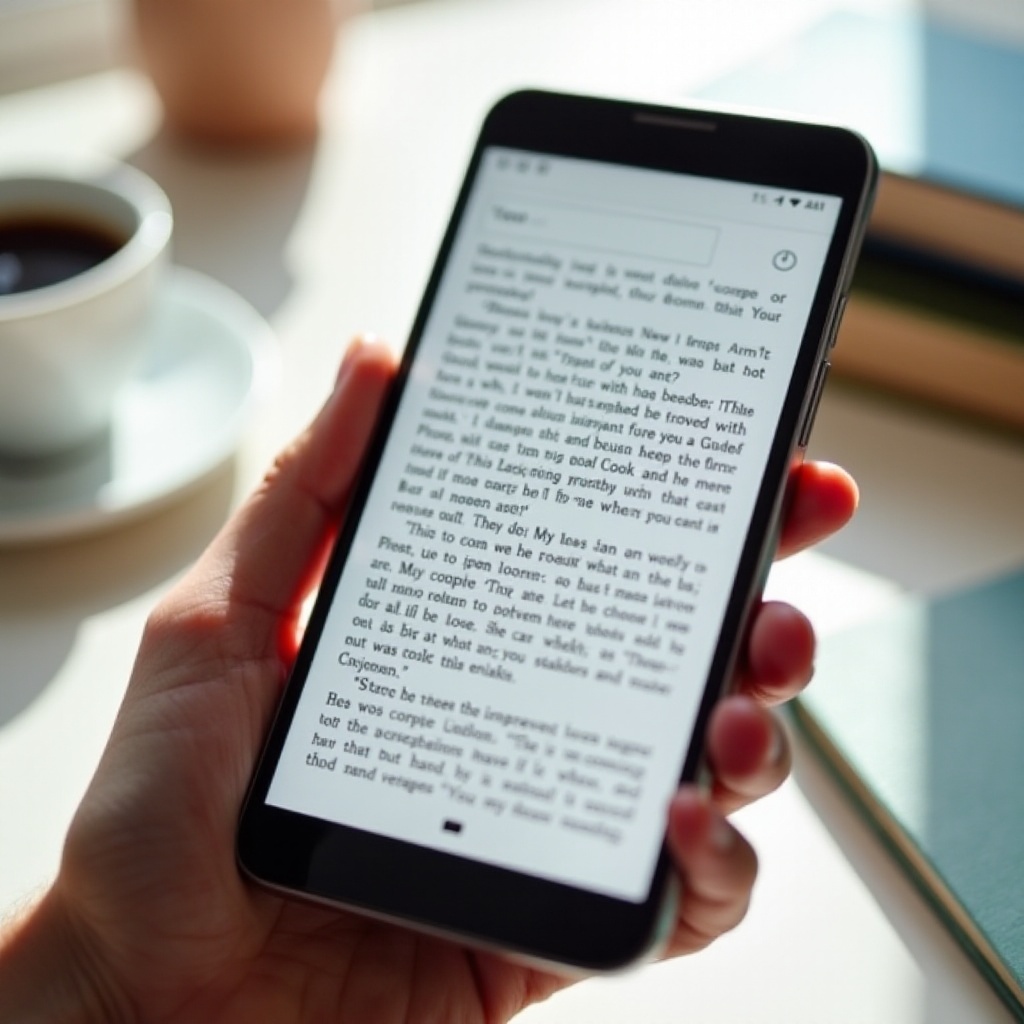
If you want an immediate answer, this shortlist points you to the best free choice for common needs. Each pick offers a strong experience without paid upgrades.
- Best overall for most people: ReadEra — fast, private, and easy to use. It supports EPUB and PDF, organizes your library, and needs no account.
- Best for library borrowing: Libby by OverDrive — simple card setup, painless holds, and smooth reading and listening on a phone.
- Best for cloud sync and store: Amazon Kindle — robust sync across devices and a polished reading view tied to a huge catalog.
- Best for uploading your own books: Google Play Books — clean uploads for EPUB and PDF with dependable cross-device sync.
- Best for customization: Moon+ Reader Free — deep control of fonts, spacing, gestures, and themes, plus volume-button page turns.
- Best lightweight EPUB reader: Lithium — fast, minimal, and perfect for older phones or readers who want zero clutter.
- Best format support and TTS: PocketBook Reader — wide file support and built-in text-to-speech for hands-free sessions.
- Best for power users: Librera Reader — advanced settings, strong library views, and performance tweaks for big collections.
Next comes transparency. We will explain how we tested these apps on Android phones so you can trust how these winners earned their spots.
How We Tested on Android Phones
We installed each app on a recent Android flagship and a budget device to measure real-world performance. We loaded the same library into each reader: multiple EPUB novels, a complex EPUB with images and footnotes, a clean PDF, and a scanned PDF. We read on buses, in bed, and outdoors to see how themes and brightness mattered. We turned on airplane mode to test offline reading and battery impact.
We rated these factors:
– Setup and onboarding speed
– Page-turn smoothness and stability over long sessions
– Font clarity, layout control, and theme quality
– Highlights, notes, bookmarks, and export options
– Library organization, search, and series grouping
– Sync reliability across devices, if supported
– Privacy and sign-in requirements
With consistent tests, we can tie features to actual reading comfort on phones. Now let us break down what you should look for when choosing a free reader.
What to Look For in a Free Android eBook Reader App in 2026
Reading on a phone demands clarity, control, and speed. Small screens magnify weak typography and clumsy navigation, so the right settings make a big difference.
Focus on these areas:
– Format support: EPUB is a must. PDF handling matters for manuals and research. Support for less common formats helps if your library is eclectic.
– Reading comfort: Adjust font family, size, line height, margins, and paragraph spacing. Small tweaks reduce fatigue on compact screens.
– Themes and night mode: Dark, sepia, and custom backgrounds cut glare. True black themes help on OLED screens and save battery.
– Page-turn options: Tap zones, swipes, and volume-button turns enable one-handed use on crowded commutes.
– Navigation: A clear table of contents, jump-to-page controls, and quick back buttons keep you oriented.
– Annotations: Reliable highlights, notes, and bookmarks. Easy export or sync keeps your work portable.
– Library tools: Auto detection of metadata, series grouping, folders, tags, and fast search.
– Sync and backups: Seamless cloud sync or local backup options for positions, notes, and settings.
– Text-to-speech: Natural voices with simple controls for pace and sleep timers.
– Performance: Quick opens, stable scrolling, and minimal battery drain on older hardware.
– Privacy: Optional sign-in and minimal data collection if you read offline.
With priorities set, a quick comparison helps you spot the best fit before you install anything.
At-a-Glance Comparison: Formats, Sync, Annotations, TTS, Offline
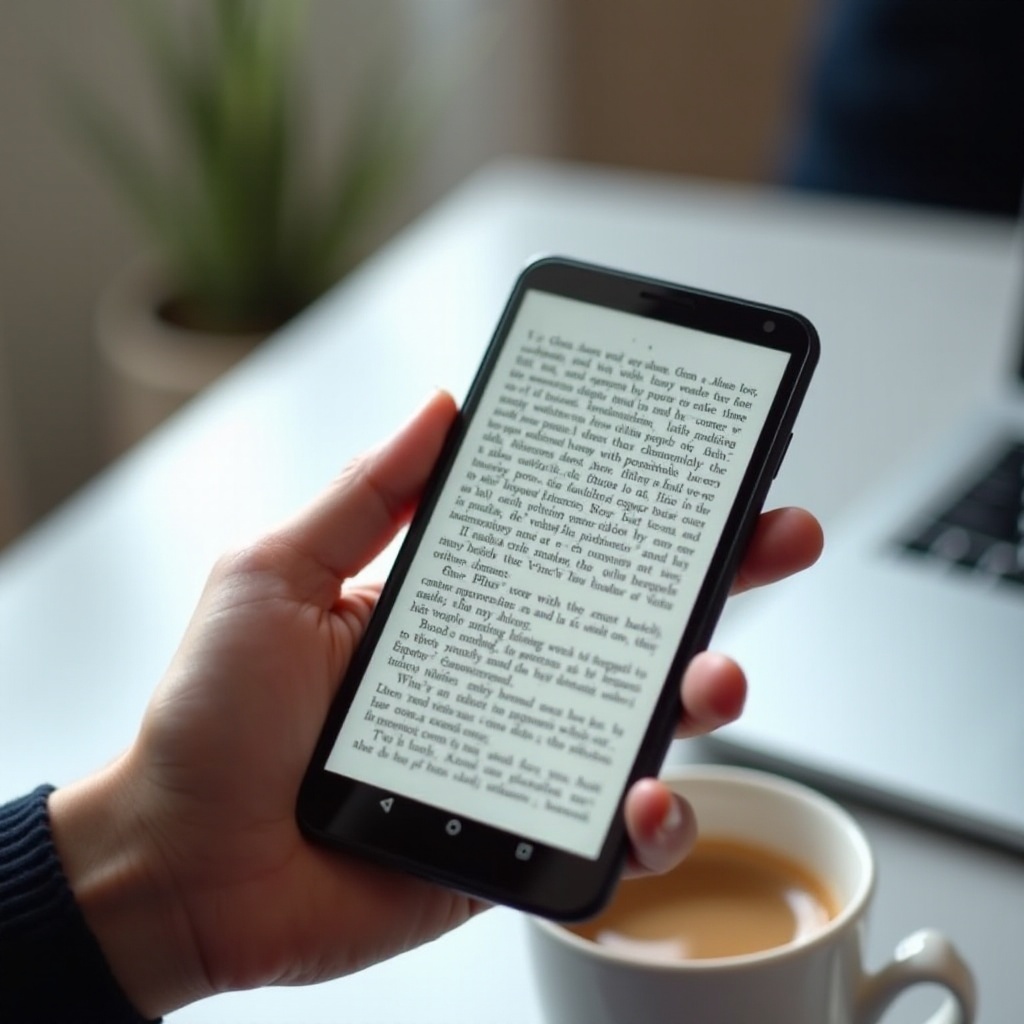
Here is how top free apps differ in broad strokes:
– Kindle: Excellent sync and store integration. Strong notes and dictionaries. Best with Kindle formats. Account required.
– Google Play Books: Friendly EPUB and PDF uploads. Reliable sync via Google account. Clean interface and notes.
– Libby: Top choice for library loans with DRM. Solid reading tools and audiobook playback. Requires a library card.
– ReadEra: Local-first with no sign-in. Good EPUB and PDF support. Strong library organization. No built-in cloud sync.
– Moon+ Reader Free: Deep customization across layout and gestures. Good EPUB support, decent for PDFs. Optional cloud connections.
– PocketBook Reader: Very broad format support and built-in TTS. Optional cloud for backup and sync.
– Lithium: Minimal features with a refined EPUB experience. Fast and light on storage.
– Librera Reader: Feature-rich with power options, broad format support, and granular tweaks for layout and performance.
This overview shows how ecosystems and privacy trade-offs shape your experience. Next, we will unpack what free means for accounts, data, and ads.
Privacy and Account Requirements: What free really means
Free apps often ask for accounts to enable sync, purchases, or borrowing. Others run fully offline and avoid collecting personal data. Decide what you value before you pick a reader.
Consider these points:
– Required accounts: Kindle and Google Play Books need accounts for library access and sync. Libby needs a library card and ties to your library system.
– Offline-first apps: ReadEra, Lithium, PocketBook, and Librera work without sign-in. They suit privacy-conscious readers and areas with spotty service.
– Ads and upgrades: Some free tiers show ads or reserve extras for paid versions. Check whether the free feature set covers your needs.
– Data collection: Storefront apps log purchases and reading positions. Offline readers keep data local by default.
– Backups: If you skip cloud accounts, use local backups or connect to your private cloud to preserve notes and positions.
With privacy settled, you are ready to build your library. The next section shows simple ways to import files and borrow from libraries.
Importing eBooks on Android: EPUBs, PDFs, and Library Loans
A good reader respects your library whether it comes from uploads or public libraries. A simple import flow keeps you reading instead of fiddling with files.
For your own EPUBs and PDFs:
– Local copy: Download files to your phone, then open them from your file manager. Many apps auto-detect books in Downloads and Documents.
– Cloud import: Share files from Google Drive or Dropbox into your reader. Look for an Open with option or built-in cloud connectors.
– Organize: Use apps that read metadata and group by author or series. ReadEra and Librera excel at scanning folders and organizing large piles.
For library loans:
– Install Libby by OverDrive and add your library card.
– Browse, place holds, and borrow.
– Download for offline reading. Read inside Libby or use supported handoff options when available.
For tricky PDFs:
– Choose readers with solid PDF engines. PocketBook and ReadEra offer good reflow and margin crop tools.
– Try reflow mode for text-heavy PDFs. For scanned PDFs, zoom and pan or split large files to improve speed.
Once your books are in place, tune power and comfort. Smart display settings improve battery life and reduce eye strain.
Battery Life and Eye Comfort on Phone Screens
Phones have bright panels that can tire eyes during long reading sessions. A few adjustments extend battery life and boost comfort without sacrificing clarity.
Practical tips:
– Adjust brightness: Keep brightness low indoors, around a third of maximum. Use adaptive brightness when moving between rooms.
– Pick the right theme: Use dark or sepia at night. On OLED screens, true black backgrounds save battery.
– Optimize typography: Choose a clean, legible font. Increase line height and margins to ease scanning on small screens.
– Limit animations: Turn off page-turn effects and parallax. This saves power and keeps page turns snappy.
– Read offline: Airplane mode reduces background activity and helps you focus.
Comfort leads to longer, better sessions. Next, accessibility tools help more people read with ease and add flexibility for multitasking.
Accessibility Tips: Large Fonts, Dyslexia-Friendly Options, and Text-to-Speech
Accessibility features support different needs and reading contexts. They also help anyone squeeze more comfort from a small screen.
Look for these options:
– Large fonts and spacing: Rapid scaling makes books readable without eye strain. Pair larger fonts with greater line height and margins.
– Dyslexia-friendly fonts: Some apps include OpenDyslexic or support custom font installs. Test multiple options to find what suits your eyes.
– Text-to-speech: Built-in TTS or Android system voices help during commutes or chores. Seek simple playback controls and a sleep timer.
– High-contrast themes: Custom palettes improve legibility in different lighting.
– Easy navigation: Table of contents, bookmarks, and seek bars let you jump chapters and find quotes fast.
If features stutter or fail, fix common problems before you switch apps. Quick troubleshooting solves most issues in minutes.
Troubleshooting: Crashes, Slow Page Turns, and Font Issues
Reading flaws often come from files, fonts, or settings. Try these simple fixes first:
– Stop crashes: Clear cache, update the app, or reinstall without deleting local books.
– Fix slow turns: Disable fancy animations, switch to a lighter font, and close background apps. Split very large PDFs if they lag.
– Resolve font glitches: Use the app’s custom font folder and restart the app to refresh font lists.
– Repair files: Re-download damaged books. Convert problem files to EPUB with a desktop tool for better performance.
– Restore sync: Log out and back in. Verify the same account across devices and stable Wi‑Fi.
With basics sorted, let us look at each recommended app and where it delivers the most value on a phone.
Amazon Kindle (Free): Ecosystem, Cloud Sync, and Where It Excels
Kindle anchors a rich ecosystem. You sign in once, and your books, positions, and notes follow you on every device, including e-ink readers. The app brings fast page turns, strong dictionaries, and extras like X-Ray for characters and places. It is ideal if you buy often and read across phone, tablet, and dedicated e-readers.
Strengths:
– Top-tier sync and backups
– Stable, polished reading view
– Huge store with samples and deals
Trade-offs:
– Amazon account required
– Best experience uses Kindle formats; sideloaded EPUBs may need a send-to or conversion step
– Storefront focus can feel pushy if you prefer uploads
If you want smooth sync and a no-drama interface, Kindle excels. If you prefer simple uploads and less tracking, Play Books is a better match.
Google Play Books (Free): Upload-Friendly and Cross-Platform Reading
Play Books blends easy uploads with dependable sync. You can add EPUB and PDF from the web or your phone, then pick up anywhere you install the app. The interface is clean and supports highlights, notes, and search. It is great for readers who build libraries from many sources and want their progress synced.
Strengths:
– Simple uploads for EPUB and PDF
– Reliable sync tied to your Google account
– Clear layout with solid search for textbooks
Trade-offs:
– Google account required
– Fewer layout tweaks than niche readers
– Storefront sits next to your library, which may distract some people
If you want a mainstream, free reader with painless uploads and sync, Play Books delivers. For borrowing, though, Libby remains the easiest path.
Libby by OverDrive (Free): Library Borrowing Made Simple on Your Phone
Libby connects you to your public library’s catalog for free eBooks and audiobooks. Setup takes minutes with a library card. The app manages holds, due dates, and downloads. Reading tools cover essential typography, themes, and bookmarks. Audiobook playback is excellent on phones and supports offline listening.
Strengths:
– Fast library setup and borrowing
– Clean reading and listening experience
– Automatic returns and hold handling
Trade-offs:
– Requires a participating library and valid card
– DRM limits sharing and export
– Fewer customization options than niche EPUB readers
If you want the cheapest way to Read more, Libby is essential. For private local reading without sign-in, ReadEra is our favorite.
ReadEra (Free): Offline, No Ads, No Sign-In Required
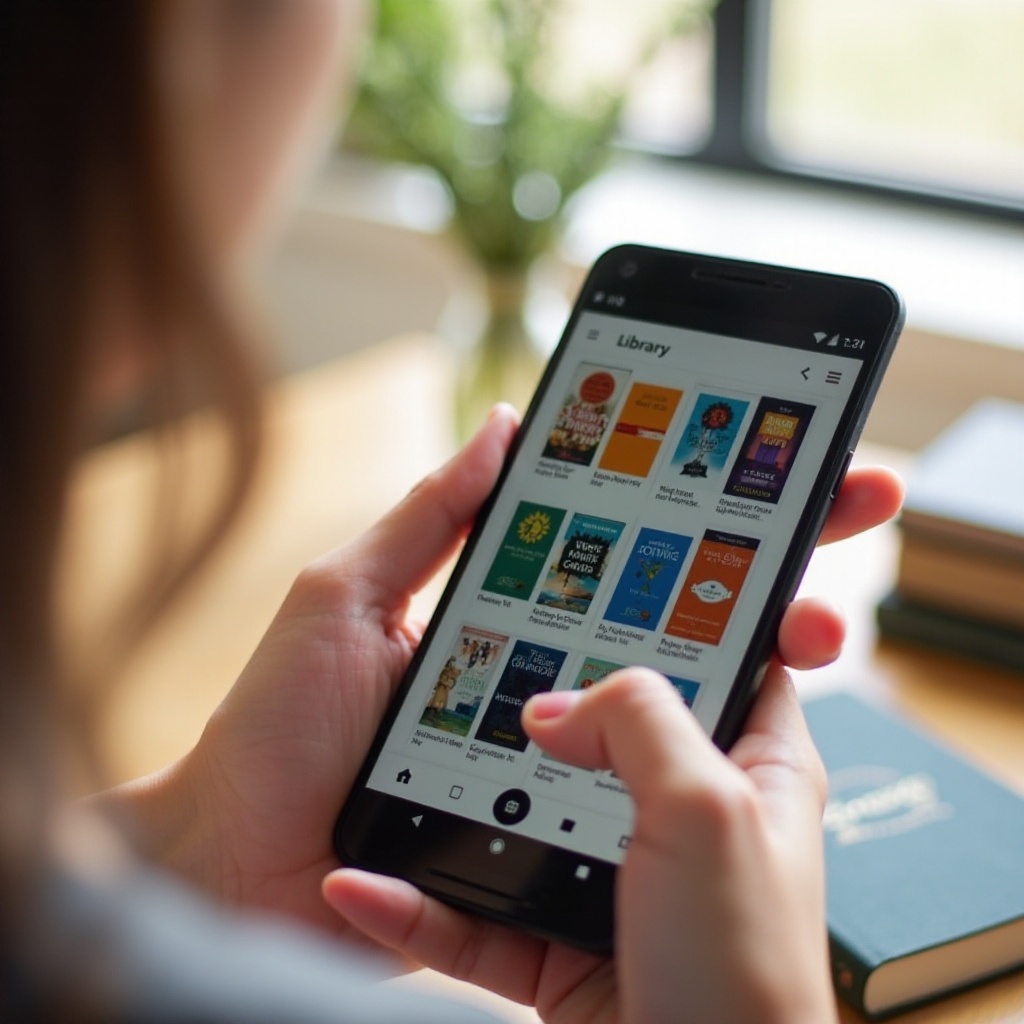
ReadEra champions privacy and speed. It scans local folders, picks up EPUBs and PDFs, and organizes them by author and series. The reading view is crisp with helpful themes and controls. It stays fast even on budget phones and never forces an account. If you want a no-strings reader for personal files, this is the easy choice.
Strengths:
– No sign-in and no ads in the free version
– Strong local library management and folder control
– Good EPUB and PDF performance
Trade-offs:
– No built-in cloud sync
– Annotation export and cross-device workflows are limited
– Interface favors function over flash
If privacy, speed, and simplicity matter most, ReadEra leads. If you crave deeper control, Moon+ Reader Free takes customization further.
Moon+ Reader Free: Deep Customization for Power Readers
Moon+ Reader Free gives you precise control over the look and feel of every page. Adjust fonts, spacing, hyphenation, and paragraph styles. Map volume keys for page turns and create profiles for day and night reading. The app works best with EPUB but also offers tools for PDFs.
Strengths:
– Extreme layout customization and gestures
– Volume-button turns and tap zones for one-handed use
– Profiles for quick theme switching
Trade-offs:
– Interface can overwhelm new users
– Ads in the free tier unless you upgrade
– Cloud options often rely on third-party storage
If tuning layout and controls is your hobby, Moon+ Reader Free is for you. If you want broad format support and built-in TTS, look at PocketBook Reader next.
PocketBook Reader (Free): Broad Format Support, TTS, and Cloud Backup
PocketBook Reader plays well with many formats, including EPUB, PDF, and DJVU. It features built-in text-to-speech with easy speed controls and a sleep timer. Optional cloud services allow syncing books and positions. The library view is flexible with filters and collections for large libraries.
Strengths:
– Excellent format compatibility
– Built-in TTS with simple playback controls
– Optional cloud backup and sync
Trade-offs:
– Interface can feel busy compared to minimal readers
– Some features require setup to shine
– Learning curve for advanced options
If you value flexibility and hands-free listening, PocketBook fits. If you want a very light EPUB reader for older phones, Lithium is a great match.
Lithium: EPUB Reader (Free): Lightweight, Clean, and Fast
Lithium strips reading down to the essentials. It opens fast, shows a clean page, and offers just enough settings for comfort. It is perfect for people who primarily read EPUBs and want zero friction. The small footprint helps on devices with limited storage or older processors.
Strengths:
– Minimal, distraction-free design
– Fast startup and smooth turns
– Easy to learn in minutes
Trade-offs:
– EPUB focus with limited PDF tools
– Modest library features compared to power-user apps
– Sync may require add-ons or manual backup
If you want reading without knobs and dials, Lithium delivers. If you want fine-grained control across many formats, Librera stands out.
Librera Reader (Free): Feature-Rich Controls for Advanced Users
Librera offers a toolbox for readers who like to tweak. It supports many formats, custom fonts, TTS, and advanced layout options. You can scan folders, tag books, and build collections. Performance settings help on older phones, and the app can integrate with third-party clouds for backup.
Strengths:
– Extensive features and format support
– Powerful library organization
– Performance tweaks for low-end devices
Trade-offs:
– Interface can be dense with options
– Some features need configuration to work best
– Less polish than storefront apps, though far more flexibility
If you enjoy tailoring your reader to different genres and file types, Librera is a great fit. With all the options covered, a quick wrap-up will help you choose your first install.
Conclusion
You have strong free choices for phone reading. If you want a private, local-first reader, start with ReadEra. If you borrow from public libraries, install Libby. If you need cloud sync and a big ecosystem, Kindle and Google Play Books are the easiest to live with. If you love to tailor every detail, pick Moon+ Reader Free. If you want wide format support and built-in TTS, PocketBook Reader shines. If you prefer speed and simplicity, Lithium is hard to beat. For people who want maximum control and broad format support, Librera is a top toolbox.
Install one app that matches your top need and load a few books. Adjust brightness, font, spacing, and themes until the page feels natural. With the right app and settings, your phone becomes a comfortable, capable library you can carry everywhere.
Frequently Asked Questions
Which is the best free Android eBook reader app for most people?
ReadEra is the best starting point for most readers on a phone. It runs offline, needs no account, supports EPUB and PDF, and organizes libraries well. If you need cloud sync, try Google Play Books. If you borrow from public libraries, Libby is essential.
Can I read EPUBs or PDFs without creating an account?
Yes. ReadEra, Lithium, Moon+ Reader Free, PocketBook Reader, and Librera open local EPUBs and PDFs without sign-in. Import files from Downloads or cloud storage. If you want sync, Google Play Books handles uploads with a Google account.
What is the best free app for borrowing library books on Android?
Libby by OverDrive offers the smoothest library experience. Add your library card, browse, place holds, borrow, and read or listen offline. Libby manages due dates and returns automatically, making it the simplest way to borrow on a phone.