How to Connect Two Phones Together: Hotspot, Bluetooth, Wi‑Fi Direct, AirDrop/Quick Share, USB, and Apps
Introduction
You can connect two phones in many useful ways. Share internet when Wi‑Fi drops. Send photos and videos in seconds. Or move your apps, messages, and settings to a new device. This guide explains each method in simple steps, so you pick the right one and avoid common pitfalls.
We focus on iPhone and Android. You will learn which tools work best for each goal. You will also see cross‑platform options that bridge the gap between ecosystems.
Before you start, check a few basics. Charge both phones. Update iOS or Android to the latest version available. Confirm you have enough storage on the receiving device. Keep a cable handy if you plan a wired connection. If you share internet, confirm your mobile plan allows tethering. With these basics covered, let us choose the right method for your task and get both phones working together smoothly.
What connect two phones means: internet sharing, file transfer, and full migration
Android and iPhone methods at a glance
What you will need before you begin
Choose the Right Way to Connect Two Phones (Goal‑Based Overview)
Different goals call for different tools. A hotspot shares mobile data with another phone. Bluetooth handles quick pairing and limited sharing. AirDrop on iPhone and Quick Share on Android move files fast. Wi‑Fi Direct creates a fast local link on many Android devices. A cable connection provides speed and stability for big transfers. For complete switching, use official migration tools.
Use this quick mapping:
– Share internet: Personal Hotspot on iPhone; Mobile Hotspot or Bluetooth tethering on Android.
– Send files: AirDrop on iPhone, Quick Share on Android, or cross‑platform web tools.
– Migrate everything: Quick Start on iPhone, Google restore and OEM tools on Android, Switch to Android, or Move to iOS.
– Sync calls or texts: brand features like Samsung Call and Text on Other Devices.
Next, start with internet sharing, because it is the most common need when Wi‑Fi is not available.
Share internet: tethering vs hotspot
Transfer files: photos, videos, documents
Migrate everything: apps, messages, settings
Sync calls and texts: brand‑specific features and limits
Share Internet Between Phones with Personal Hotspot or Bluetooth Tethering
When one phone has mobile data, you can share that connection with the other via Wi‑Fi, Bluetooth, or USB. Wi‑Fi hotspot offers the fastest speeds and the simplest setup for most users. Bluetooth tethering uses less battery but is slower. USB tethering is stable but requires a cable.
To share from iPhone:
1) Open Settings > Personal Hotspot.
2) Toggle Allow Others to Join. Set a strong Wi‑Fi password.
3) On the other phone, connect to the iPhone hotspot from Wi‑Fi settings.
To share from Android:
1) Go to Settings > Network and Internet or Connections > Hotspot and tethering.
2) Turn on Wi‑Fi hotspot. Set a secure password. Optionally enable Bluetooth tethering or USB tethering.
3) On the other phone, join the hotspot from Wi‑Fi settings.
Tips:
– Check your plan. Some carriers block or limit tethering.
– Use 5 GHz hotspot if both phones support it for faster speeds.
– Rename your hotspot to a unique SSID to avoid confusion.
– Monitor data use. Streaming and large downloads can consume data fast.
– Disable the hotspot when done to save battery and prevent unwanted joins.
If you only need to send files, a direct device‑to‑device method will be faster and cheaper than using mobile data. Let us look at Bluetooth next.
Turn on Personal Hotspot on iPhone and set a secure password
Enable Wi‑Fi hotspot and Bluetooth tethering on Android
Connect the second phone via Wi‑Fi, Bluetooth, or USB
Data usage, carrier restrictions, speed, and stability tips
Pair Phones with Bluetooth for Basic Sharing
Bluetooth makes the phones aware of each other and enables limited sharing. It is useful for quick pairing, small file transfers on some Android devices, or using one phone as an audio source. It is not ideal for large files.
Pair Android to Android:
– Open Settings > Bluetooth. Turn Bluetooth on for both phones.
– On one phone, tap the other under available devices. Confirm the pairing code on both.
– Grant permissions if prompted for contacts or messages. Some features require consent.
Pair iPhone to iPhone:
– Go to Settings > Bluetooth. Turn it on.
– Tap the other iPhone if it appears. Confirm the code.
– AirDrop handles file transfers better than Bluetooth. Use Bluetooth mainly for tethering or accessories.
Pair Android to iPhone:
– Pairing completes for tethering or audio, but file transfer via Bluetooth is limited. Use Quick Share or AirDrop with cross‑platform workarounds or a cable.
Bluetooth shines for accessories and tethering. For fast file transfers, jump to AirDrop and Quick Share.
Pair Android to Android and manage permissions
Pair iPhone to iPhone and adjust device name and visibility
Pair Android to iPhone: what works and what does not
Bluetooth limits vs other methods
Transfer Files Fast: AirDrop on iPhone and Quick Share on Android
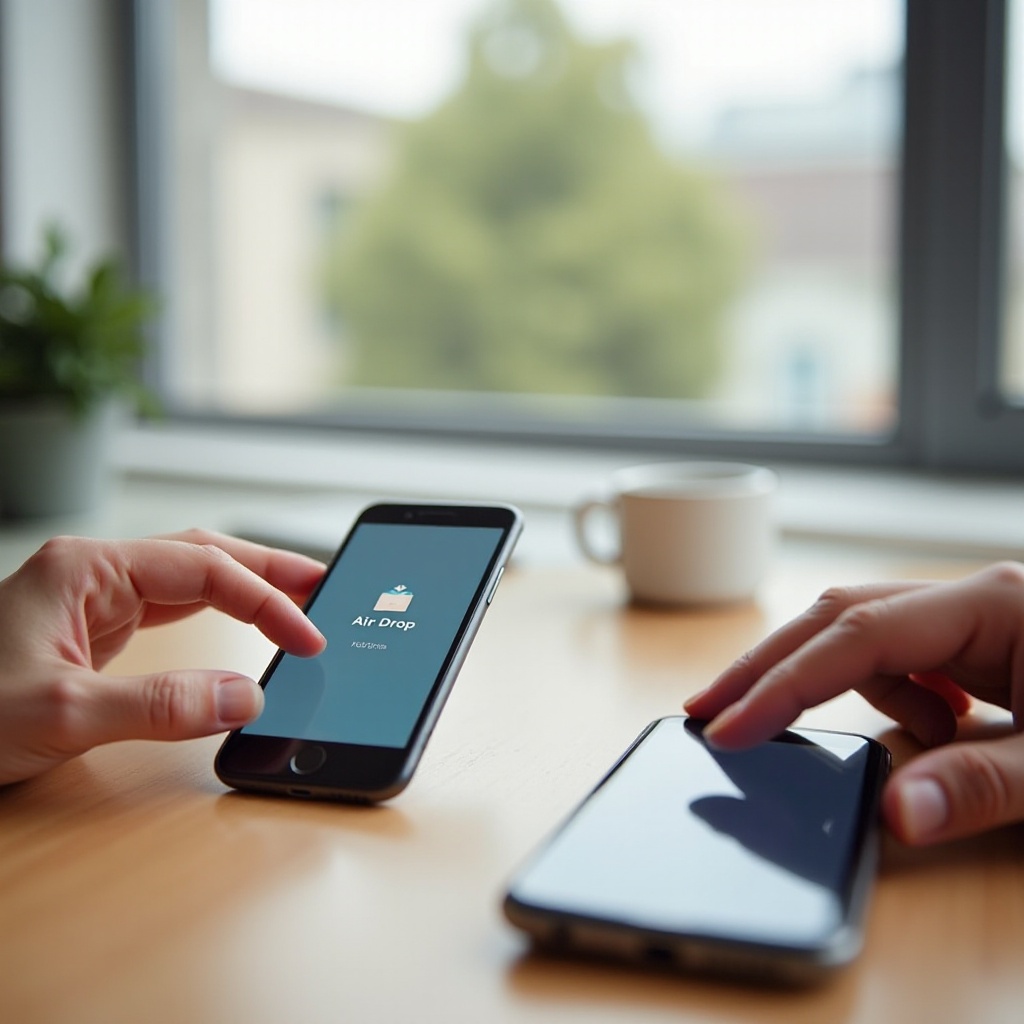
If you need to move photos, videos, or documents quickly, use the built‑in, high‑speed sharing tools. AirDrop on iPhone and Quick Share on Android use Wi‑Fi and Bluetooth to create a fast local link that does not consume mobile data.
AirDrop on iPhone:
– Open Control Center. Long‑press the connectivity tile. Tap AirDrop.
– Choose Contacts Only or Everyone for 10 Minutes for broader visibility.
– On the sender, select files in Photos or Files. Tap Share > AirDrop, then pick the recipient device.
– Keep devices unlocked and near each other.
Quick Share on Android:
– Turn on Wi‑Fi and Bluetooth. Open the item and tap Share > Quick Share.
– Select the nearby device. If needed, enable visibility in Quick Share settings.
– Accept the transfer on the receiving phone.
Cross‑platform options:
– Use a shared link via Google Drive, iCloud, or OneDrive.
– Use Snapdrop in a browser on both phones.
– Try Send Anywhere for ad‑hoc transfers.
For very large videos, compress or convert HEVC and H.264 as needed to improve compatibility. With the core file‑sharing tools covered, you may want a direct peer link without cloud or brand features. Wi‑Fi Direct can help, especially on Android.
AirDrop setup: Everyone for 10 Minutes vs Contacts Only
Quick Share steps and device visibility on Android
Cross‑platform workarounds: shared links and temporary servers
Handling large files: compressing, codecs, and reliability tips
Use Wi‑Fi Direct and Nearby Sharing Alternatives
Wi‑Fi Direct connects two devices without a router. Many Android phones support it for direct file transfers or media casting. It delivers higher throughput than Bluetooth and avoids using your mobile data.
On Android:
– Open Settings > Wi‑Fi or Connections.
– Look for Wi‑Fi Direct. Select the other device. Confirm the connection.
– Use the Files app or a Wi‑Fi Direct enabled app to send files.
Quick Share vs Wi‑Fi Direct:
– Quick Share uses a mix of protocols and offers a friendly interface. It is usually easier than managing Wi‑Fi Direct manually.
– Use Wi‑Fi Direct when an app specifically supports it or when Quick Share is not available.
On iPhone:
– iOS does not expose Wi‑Fi Direct in settings. Use AirDrop or cross‑platform tools like Snapdrop in Safari or Chrome.
If you want maximum speed and reliability, a cable often beats wireless methods for big jobs. The next section explains how to connect phones with a cable and the best times to use one.
Enable and use Wi‑Fi Direct on Android
Nearby Share and Quick Share differences and best use cases
iPhone equivalents and workarounds
Pros and cons vs hotspot and Bluetooth
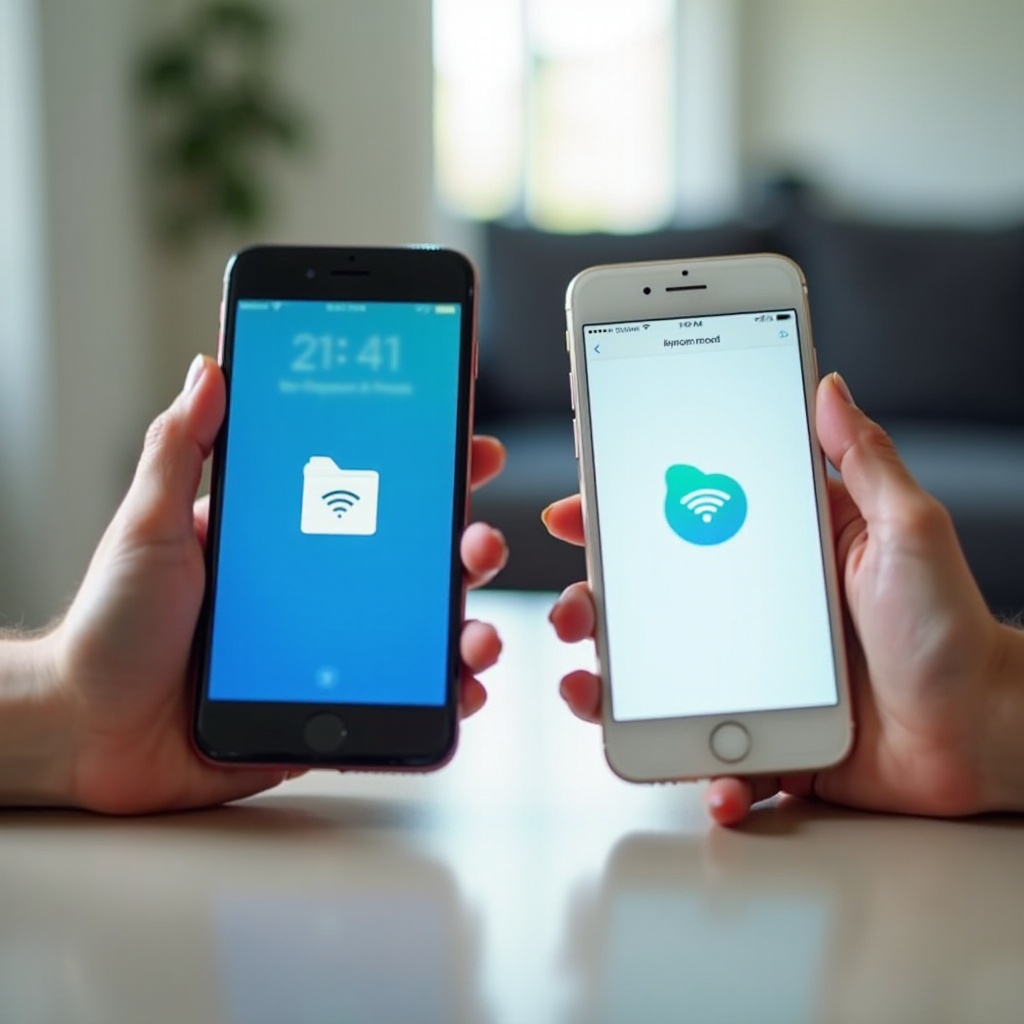
Connect with a Cable (USB‑C to USB‑C, USB‑C to Lightning)
A cable connection removes wireless interference and power concerns. Modern phones often support USB‑C to USB‑C connections. Newer iPhones also use USB‑C. Older iPhones use Lightning and may need a USB‑C to Lightning cable.
When to use a cable:
– You plan to move many gigabytes of photos or videos.
– Wireless tools fail or stall.
– You want consistent speeds without battery drain.
Steps to connect:
1) Connect the phones with a compatible cable.
2) On Android, pull down the notification shade. Tap USB options and choose File Transfer MTP or PTP.
3) On iPhone with USB‑C, use the Files app to browse external storage on supported devices, or follow on‑screen prompts during setup to use the official migration tools.
4) Use a file manager to copy files between devices, or use migration apps that support cable mode.
Tips:
– Use a high‑quality, data‑capable cable.
– If one phone lacks power, use a powered hub or connect a charger.
– If a phone will not recognize the other, toggle USB mode or unlock both devices.
For moving everything, the best route is official migration tools. Let us switch to full device transfers where both platforms offer guided flows.
When a cable is better than wireless
USB modes: File Transfer MTP, PTP, and tethering
Using OTG adapters, hubs, and storage devices
Cable quality, port issues, and troubleshooting
Move Everything to a New Phone (Full Device Migration)
Full migration moves apps, messages, photos, settings, and accounts. Apple and Google provide guided tools that reduce friction. Most phone makers add their own assistants for even smoother transfers within a brand.
iPhone to iPhone with Quick Start:
– Place the new iPhone next to the old one. Unlock both.
– Follow on‑screen prompts. Scan the pattern to link devices.
– Choose Transfer from iPhone for a direct device to device move, or restore from iCloud if you have a recent backup.
– Keep both on power and connected to the same Wi‑Fi if possible.
Android to Android:
– During setup, connect to Wi‑Fi. Sign in with your Google account.
– When prompted, choose to copy apps and data from your old device.
– Use a cable for speed, or wireless if convenient.
– For Samsung, use Smart Switch. OnePlus offers Clone Phone. Other brands have similar tools.
Cross‑ecosystem:
– To Android from iPhone: use the Switch to Android app. A cable often transfers more types of data.
– To iPhone from Android: use Move to iOS. Follow prompts during iPhone setup.
Remember to re‑enable two factor authentication, check notifications, and verify eSIM or SIM activation after migration. With complete moves covered, let us look deeper at cross‑platform transfers and messaging apps.
iPhone to iPhone with Quick Start and iCloud
Android to Android with Google and OEM tools
iPhone to Android and Android to iPhone: cable vs wireless migration
What transfers automatically and what you set up manually
Cross‑Platform Methods: Snapdrop, Switch to Android, Move to iOS
When you mix iPhone and Android, pick tools that work across both. For ad‑hoc file sharing, Snapdrop creates a temporary local bridge in your browser. For complete moves, use the official switch apps.
Snapdrop:
– Connect both phones to the same Wi‑Fi.
– Open snapdrop.net in each phone browser.
– Tap the other device icon and send files. Accept on the receiver.
Switch to Android from iPhone:
– Install Switch to Android on iPhone. On your new Android phone, start setup and choose to copy data.
– Connect with a cable when prompted for the broadest transfer. Bring over photos, contacts, messages where supported, and more.
Move to iOS from Android:
– During iPhone setup, pick Move Data from Android. Install Move to iOS on your Android phone.
– Enter the code shown on iPhone. Choose what to transfer and wait for the process to finish.
Messaging:
– WhatsApp supports chat migration between platforms. Update both apps and follow in‑app prompts.
– Signal and Telegram rely on cloud or device encryption. Review their specific guides for transfers.
If things do not connect or stall, the next section covers practical fixes that resolve most problems.
Snapdrop for browser based local transfers
Switch to Android: steps and supported data types
Move to iOS: steps and supported data types
Messaging apps transfer notes
Troubleshooting: When Two Phones Will Not Connect
Connections often fail for simple reasons. Work through quick checks before deeper fixes. Confirm both phones have Wi‑Fi and Bluetooth on. Keep them unlocked and within a meter of each other. Turn off Airplane Mode. Restart both devices.
Bluetooth pairing fails:
– Delete the pairing on both phones. Re‑pair from scratch.
– On Android, clear Bluetooth cache: Settings > Apps > Show system > Bluetooth > Storage > Clear cache.
– On iPhone, reset network settings if needed: Settings > General > Transfer or Reset > Reset Network Settings.
– Move away from busy 2.4 GHz environments or turn off nearby interference sources.
Hotspot issues:
– Change hotspot name and password. Some devices reconnect better after a rename.
– Toggle 2.4 GHz vs 5 GHz bands to improve compatibility.
– Disable battery saver. Some phones limit hotspot to save power.
– Confirm your carrier allows tethering.
AirDrop or Quick Share not working:
– Set AirDrop to Everyone for 10 Minutes temporarily.
– In Quick Share, enable visibility and keep the screen on.
– Turn off Personal Hotspot. It can interfere with peer connections.
– Sign out and back in to Apple ID or Google account if visibility is stuck.
USB not detected:
– Try another cable and port. Use a known good, data‑capable cable.
– On Android, change USB mode to File Transfer MTP.
– Unlock both phones and grant permissions.
– If a hub is involved, use a powered hub.
With the link stable, keep it safe and efficient. The next section covers privacy and battery techniques that help your phones perform better during transfers and tethering.
Bluetooth pairing fails: resets, caches, and interference
Hotspot issues: network name, bands, and carrier blocks
AirDrop and Quick Share not working: visibility and proximity fixes
USB not detected: correct cable, modes, and permissions
Safety, Privacy, and Battery Tips
Protect your data and your phones while they connect. Always use strong passwords on hotspots. Share only with people you trust. After you finish, forget devices you do not plan to reconnect. Revoke app permissions that are no longer needed.
Reduce battery drain:
– Plug both phones into power during long transfers.
– Lower screen brightness and disable high refresh modes temporarily.
– Avoid direct sunlight to prevent thermal throttling.
Privacy matters:
– Avoid public hotspots for sensitive transfers.
– Prefer end to end encrypted apps for personal files.
– Clear temporary downloads and shared links after use.
These habits keep your transfers secure and your phones healthy. With best practices in mind, let us close with a quick recap to help you choose the right method every time.
Secure your hotspot and sharing settings
Revoke permissions and forget devices after use
Reduce battery drain: power settings and heat management
Conclusion
Connecting two phones starts with a clear goal. Share internet with a hotspot when Wi‑Fi fails. Use AirDrop or Quick Share for fast local file transfers. For stubborn links or huge files, a cable saves time. When moving to a new phone, trust the official migration tools and follow prompts.
Choose the simplest path that fits your need. Keep both phones updated, unlocked, and close together. Watch for carrier limits, app permissions, and USB mode settings. With these steps, you can link iPhone and Android devices quickly, reliably, and safely. Bookmark this guide so you can pick the right method next time, whether you share a quick photo, tether on the go, or move your digital life to a new device.
Frequently Asked Questions
Can I connect two phones to share internet without using data?
You can share internet without mobile data only if one phone is already on Wi‑Fi and supports sharing that Wi‑Fi via hotspot, which many devices and carriers restrict. For offline transfers, use AirDrop, Quick Share, Wi‑Fi Direct, or a cable.
What is the fastest way to transfer large videos between an iPhone and Android?
Use a cable when possible. Connect with USB‑C to USB‑C or USB‑C to Lightning and follow prompts or use migration tools. For wireless, use Snapdrop on the same Wi‑Fi or a cloud link. Compress very large files and keep both phones on power.
How do I connect two phones to share calls and texts?
Within the same brand, use built‑in features. On Samsung, enable Call and Text on Other Devices. Google Messages pairs with the web, not another phone. iPhone does not route calls or SMS between iPhones without a Mac or iPad. Apps like WhatsApp and Telegram sync when linked to the same account.